
 Users
Users
Sys Admin can effectively manage user accounts, ensuring both security and efficient access control within the system.
Adding a User: Sys Admin has the ability to add new users manually or import them into the system. This process involves providing essential user details and assigning appropriate roles and permissions.

Managing User Activation/Deactivation: Sys Admin can manage user activation and deactivation. By clicking on the three dots located on the right side of the user listing page, Sys Admin can choose to "Make User Active" or "Make User Inactive."
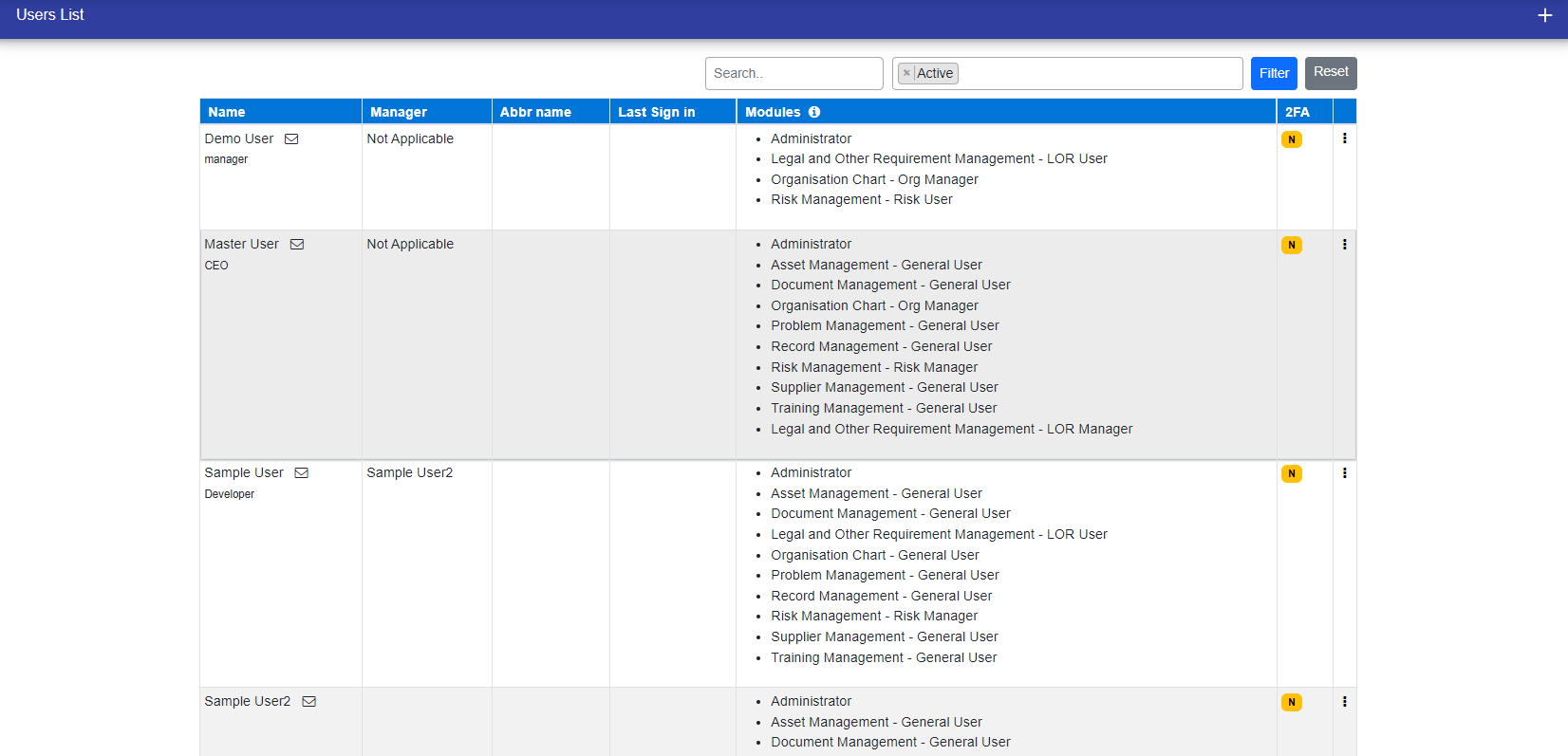
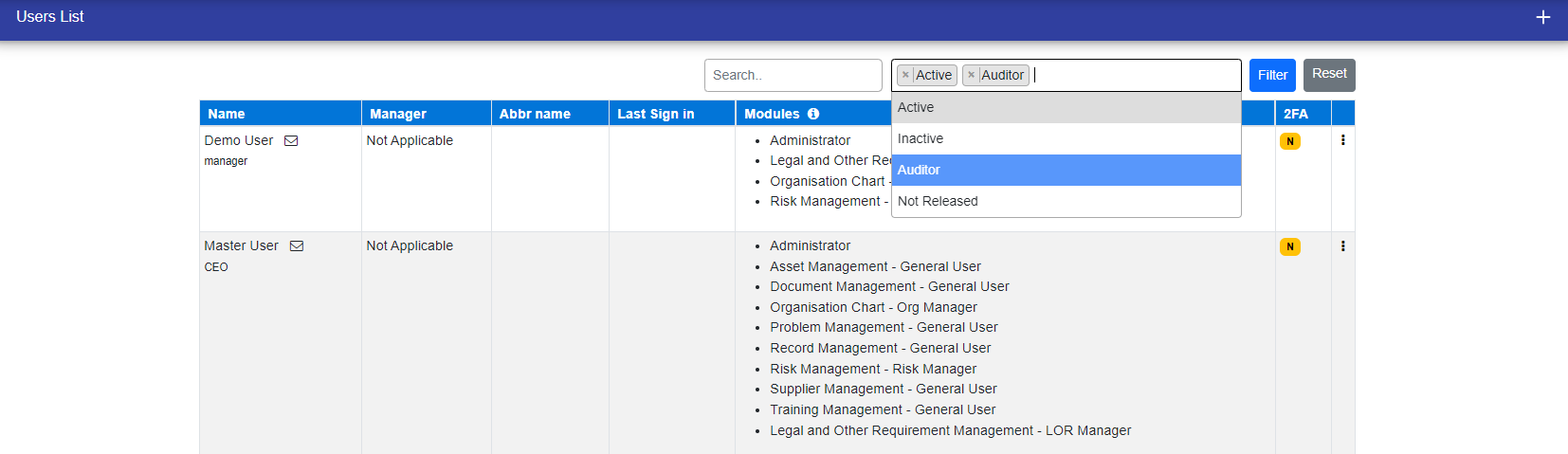
You can also filter non system user based on your needs.
- Active users
- Inactive Users
- Auditors
- Not Released Users
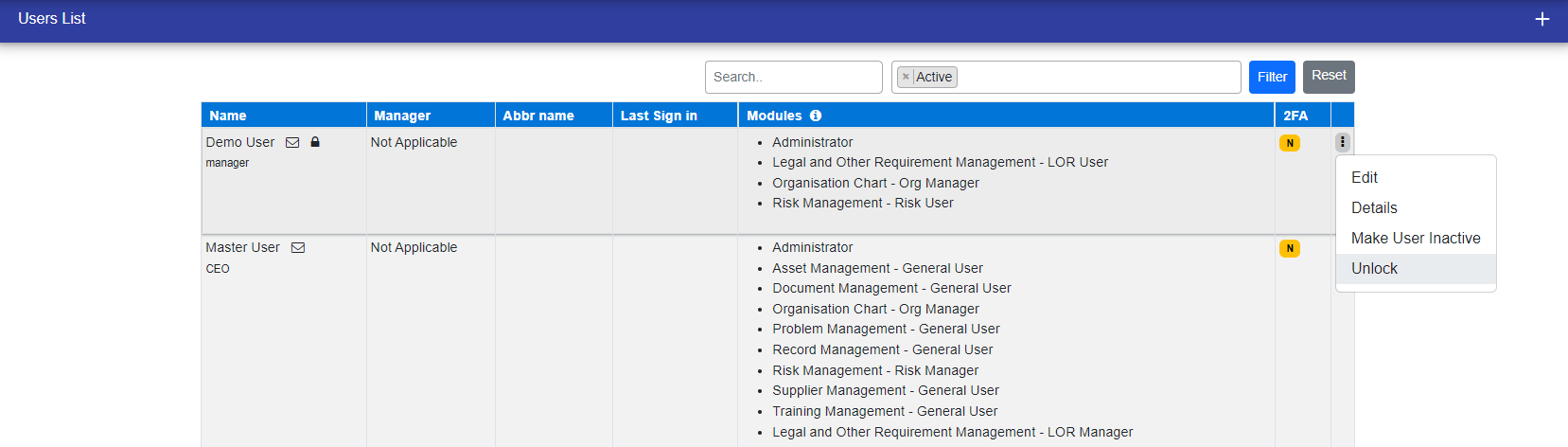
Unlocking Locked User Accounts: In the event that a user becomes locked out due to multiple incorrect login attempts, Sys Admin can initiate the process of unlocking their account. Users can wait for a designated period for automatic unlock, or they can contact an administrator for assistance. Sys Admin can identify locked users through the user listing page by looking for a lock icon displayed next to the name of the user. To unlock a user account, Sys Admin can follow these steps:
- Click on the three dots in the last column and choose "Unlock User."
- After selecting "Unlock User," the page will refresh, and the user will be unlocked.
Create Duplicate User: When creating a user, if the firstname and lastname is similar to the non system users firstname and lastname then, you'll be asked if you want to convert the existing non system user into a system user. If you choose 'Yes,' the non-system user will be deleted and converted. If you choose 'No,' a new system user will be created.

Editing User Details: Sys Admin can access a user listing and edit user details as needed.
Assigning User Roles: Sys Admin can assign various roles to users within the system. These roles determine the specific access and permissions granted to each user, enhancing security and access control.
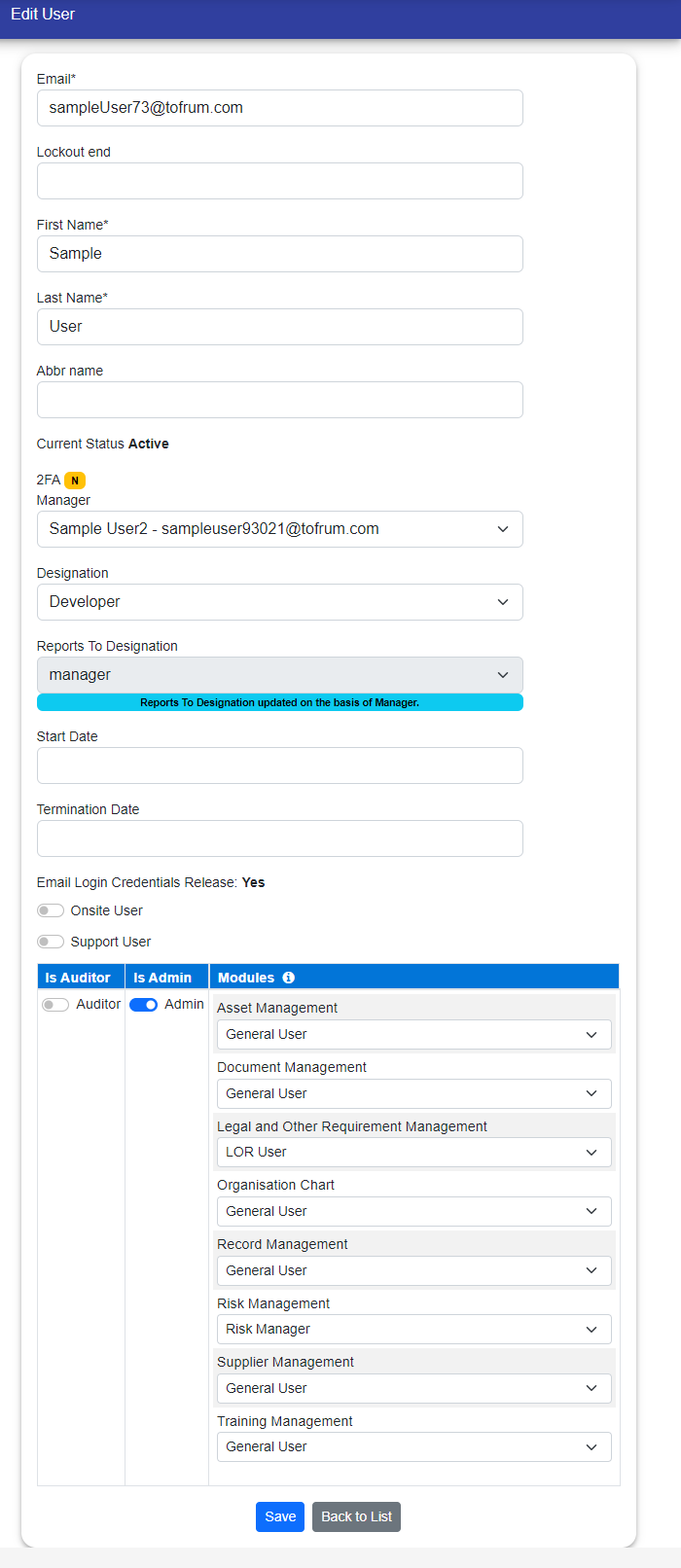
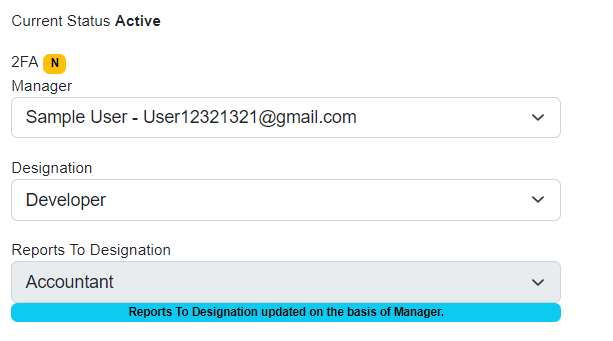
Additionally, If you select "Manager" of user then its "Reports to Designation" automatically updated according to manager Designation.
© Tofrum, 2024 • Updated: 24-4-2024
Comment or report problem with topic
