
 Standards
MSAT has been provisioned to support most of the standards.
Tofrum loads ISO 27001 with all controls in the system or any other standard controls which are required by the customer during setup process. If the standard is not there, please make a request to support.
Standards are based on standard organisation.
Customers can manage(List, add, edit, delete) existing controls or their own controls.
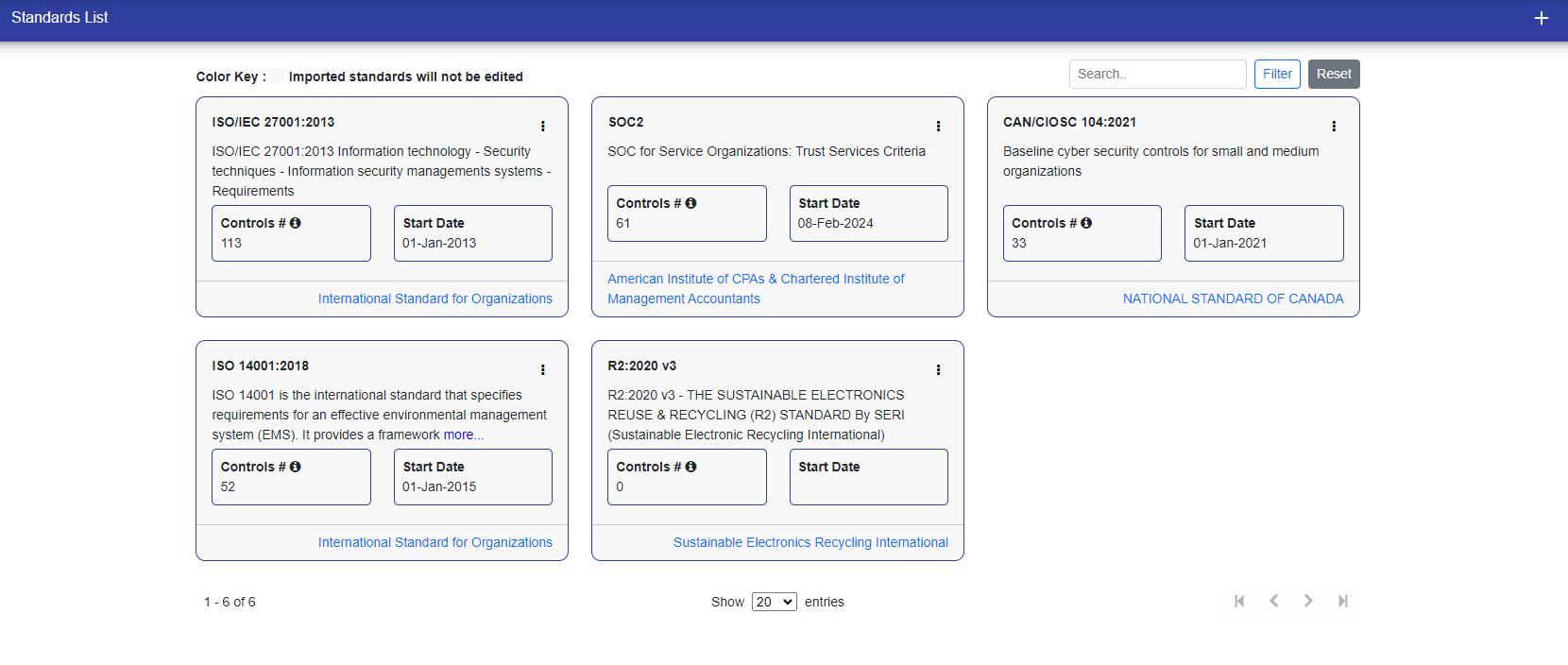
You can create a standard manually or import a standard from the library.

Manual Create
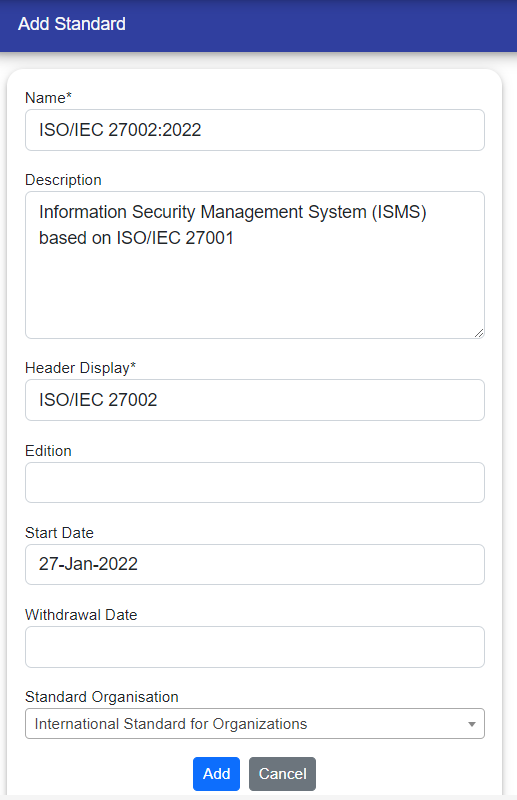
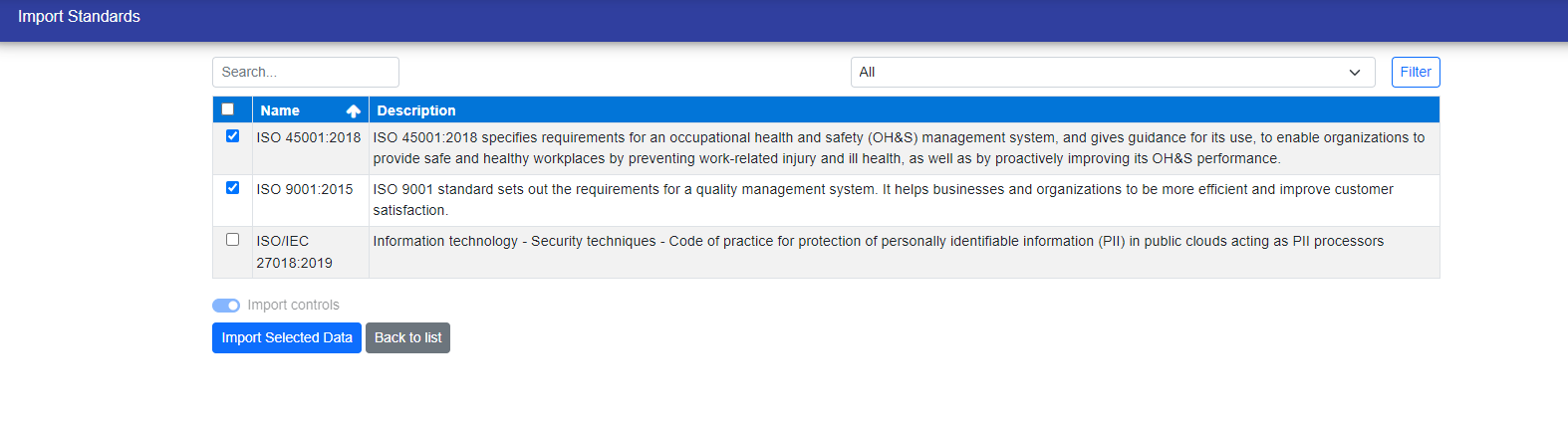
Import Create: You have to select entries to import and then click import selected data button.
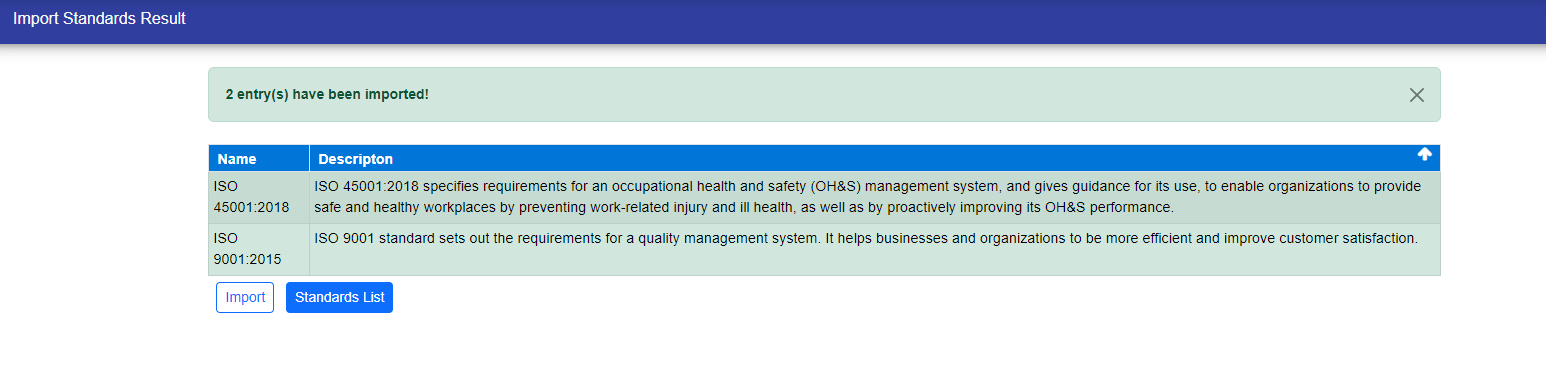
This screen displays the imported list and asks the user whether they want to select the imported standard in the risk register.
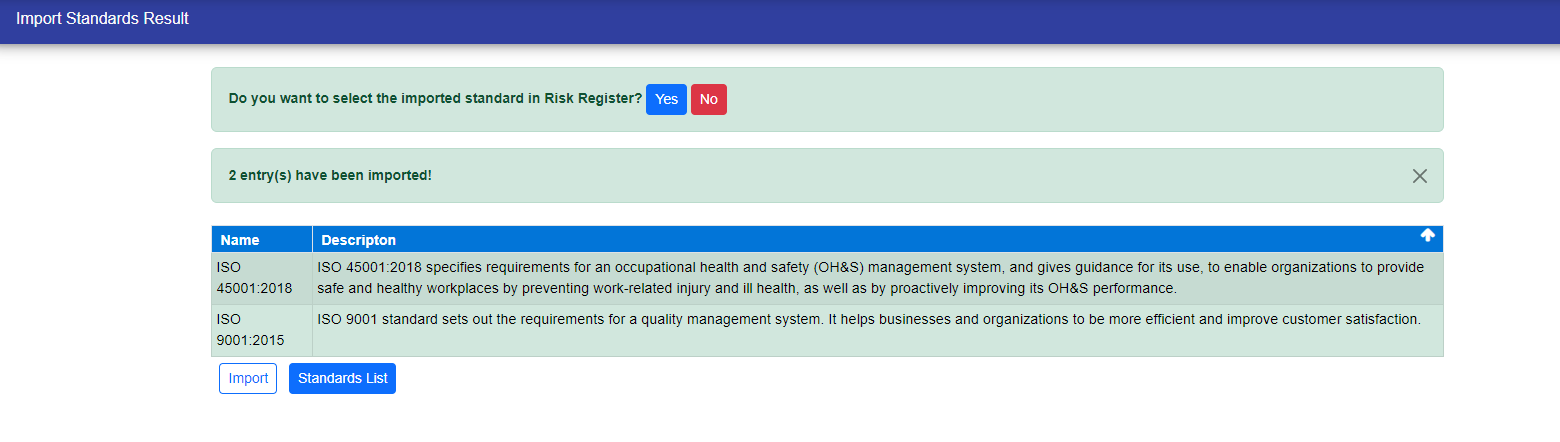
after selecting now your standard is imported in the standard list.
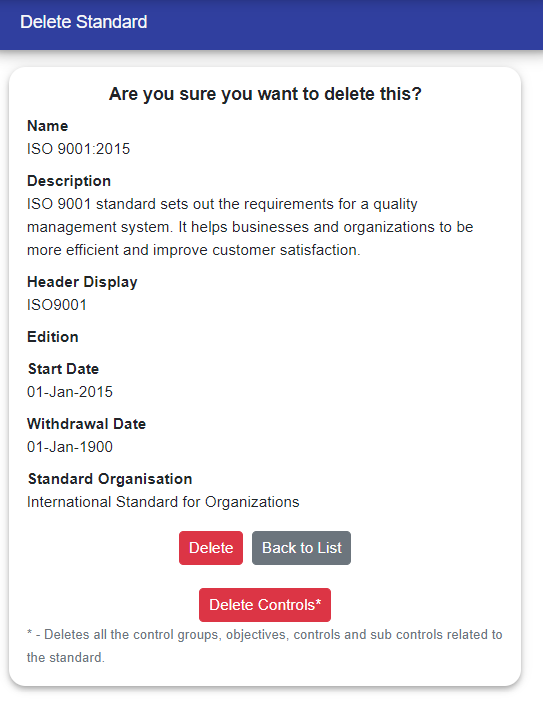
If want to delete the standard, you have to delete all the associated controls using delete controls button first and then delete the standard.
Transition from ISO/IEC 27001:2013 to ISO/IEC 27001:2022
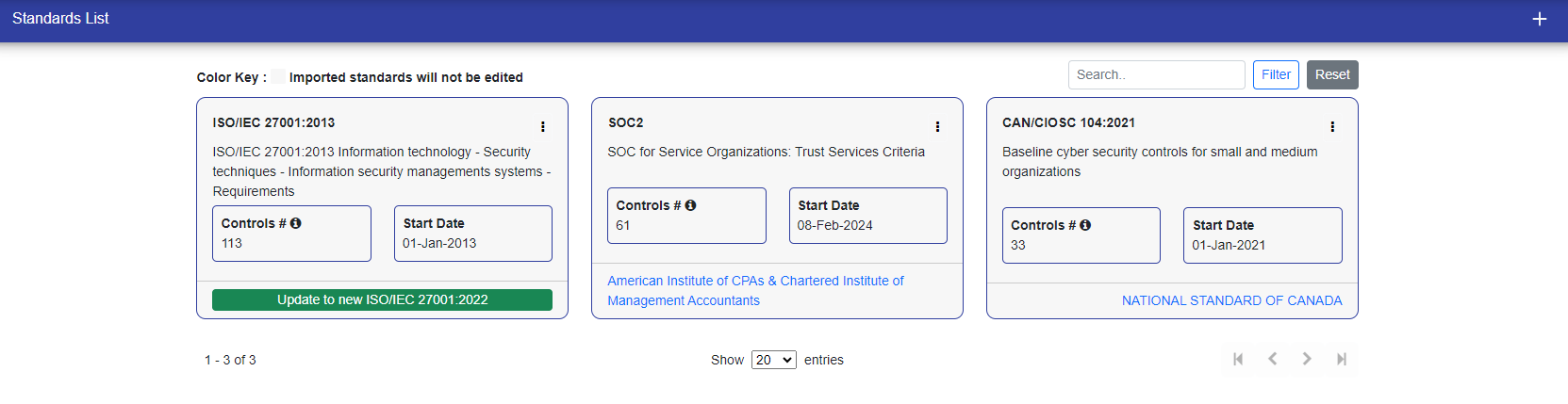
New edition of ISO/IEC 27001:2013 is available. We can update it to ISO/IEC 27001:2022 accordingly.
We get the notification of new edition in Dashboard. We can click on update button and follow some steps to update the standard edition.

After clicking on update button, you can see standards list and update the standard you want to update.
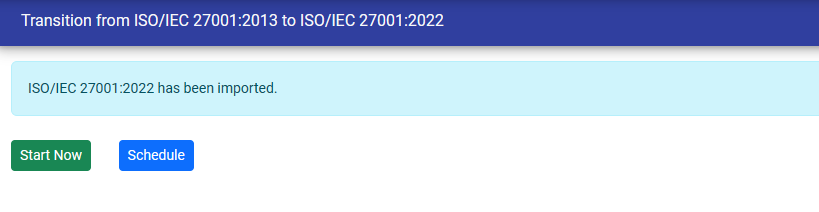
 After clicking on update standard button, the new standard is imported in the system. Now you can decide whether you want to start transition now or schedule it for later.
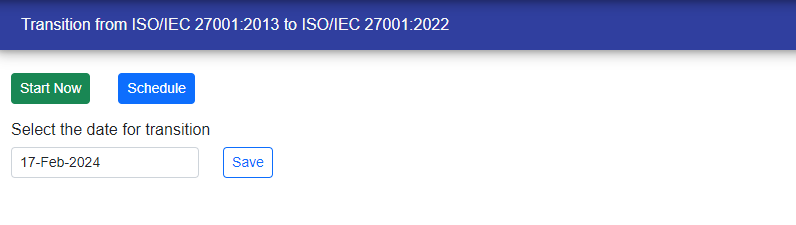
If you want to schedule the transition, then click on schedule and select the date on which you want to start transition and click save.
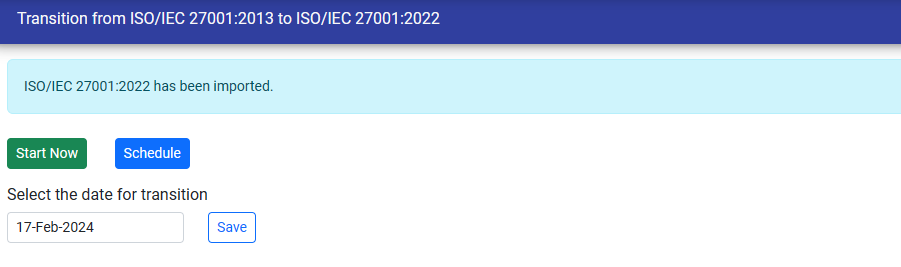
After saving you can see the scheduled date in standard list. You can reschedule the transition by clicking on start transition button.
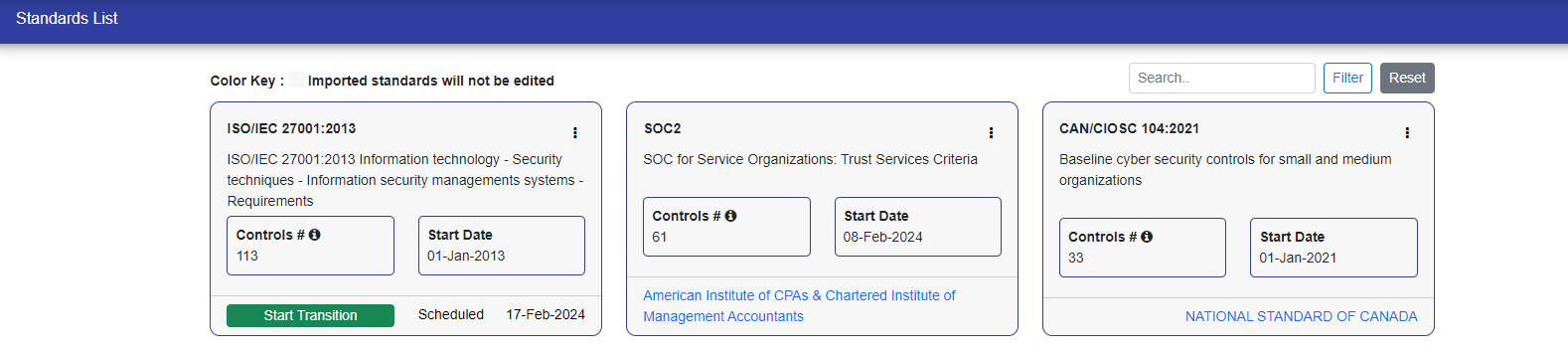 When you want to start transition, you have to click on start transition button in the standards list.
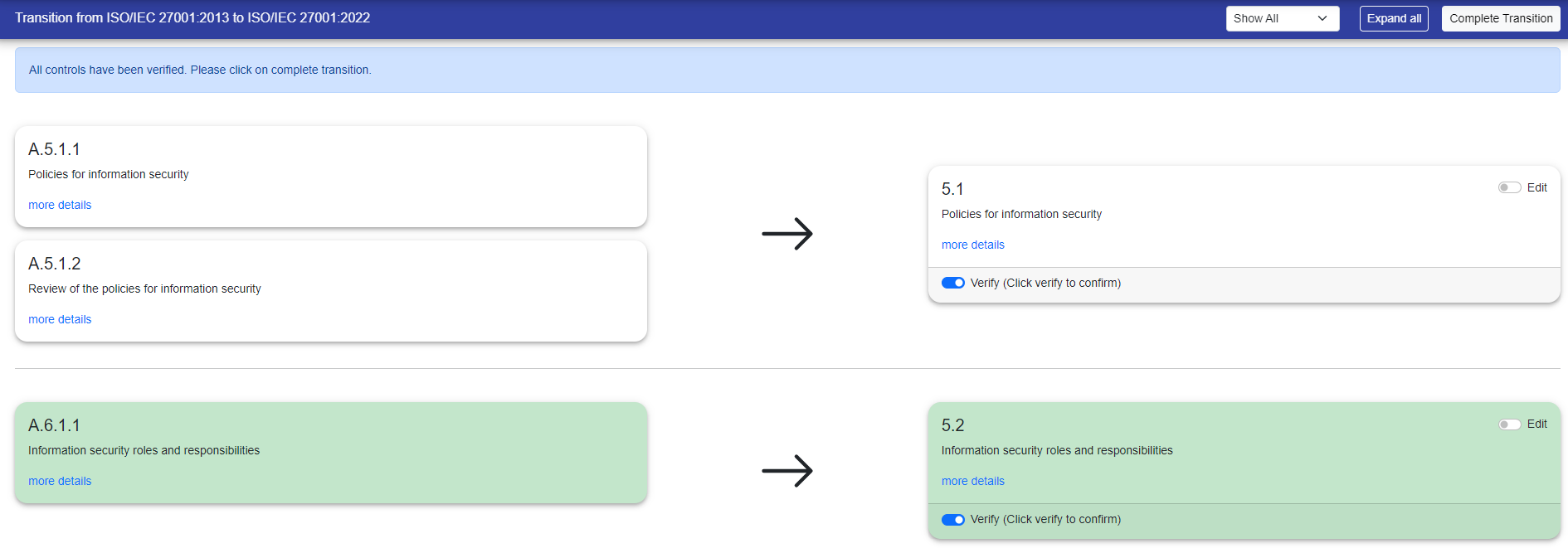
 You can click on more details link to see the control details inside. If you want to edit the details then you can click on edit toggle in the card. After clicking on the verify button your control is verified and saved.
The auto mapped controls will appear in the green background.
 The New controls whose mapping does not exists in the old standard appears in the following way.
 When the transition is under progress then all actions related to risk, control register and sub control register are locked. No operations can be performed during this time.
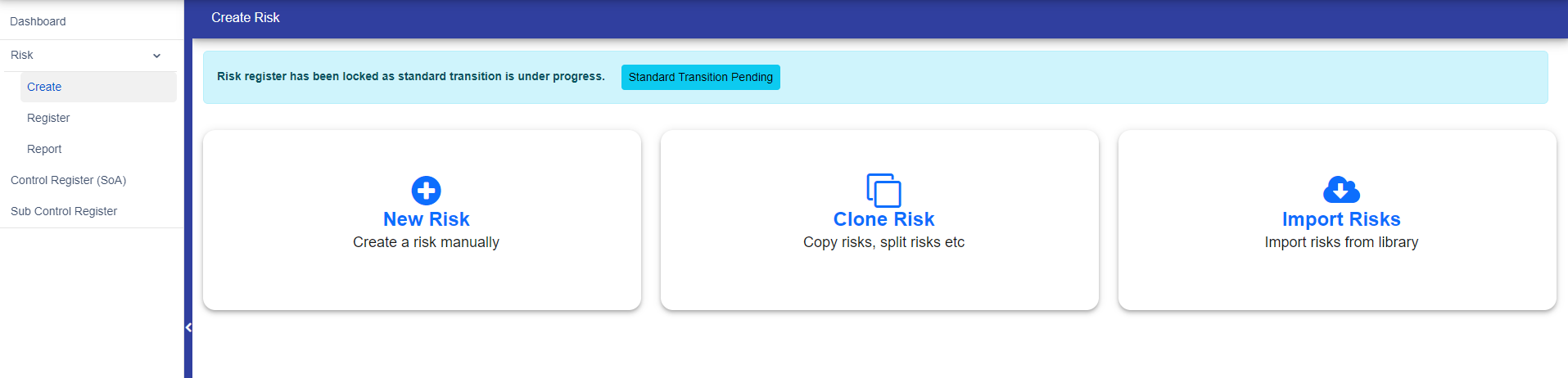
After verifying all controls you can click on complete transition button on top to complete transition.
After click on complete transition you will receive the message of success.

© Tofrum, 2024 • Updated: 15-4-2024
Comment or report problem with topic
