
 Control Register(SOA)
Click on Control Register(SOA) from dashboard page to load the listings.
All related controls for selected standards will be populated with all the associated Risk Ids.
You can click on Risk Id and see its Details in Risk Register and also The risk gets highlighted in the grid, if the risk is opened and incomplete.
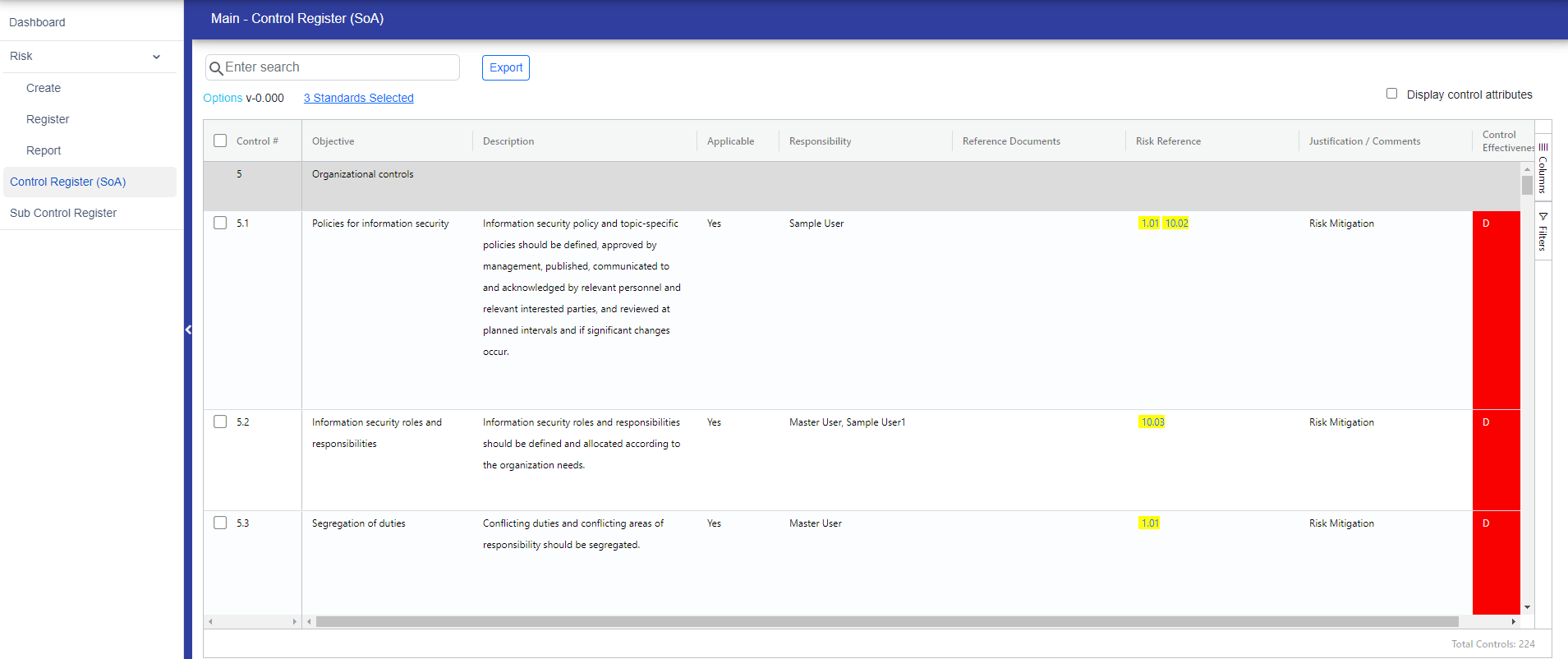
You can see control attributes in the grid, when you can click on checkbox of display control attributes.

Control Register(SOA) can also be updated with the review date separately.
Only few users have access to modify the Control Register(SOA).
Each Control Register(SOA) control can be excluded by adding custom description.
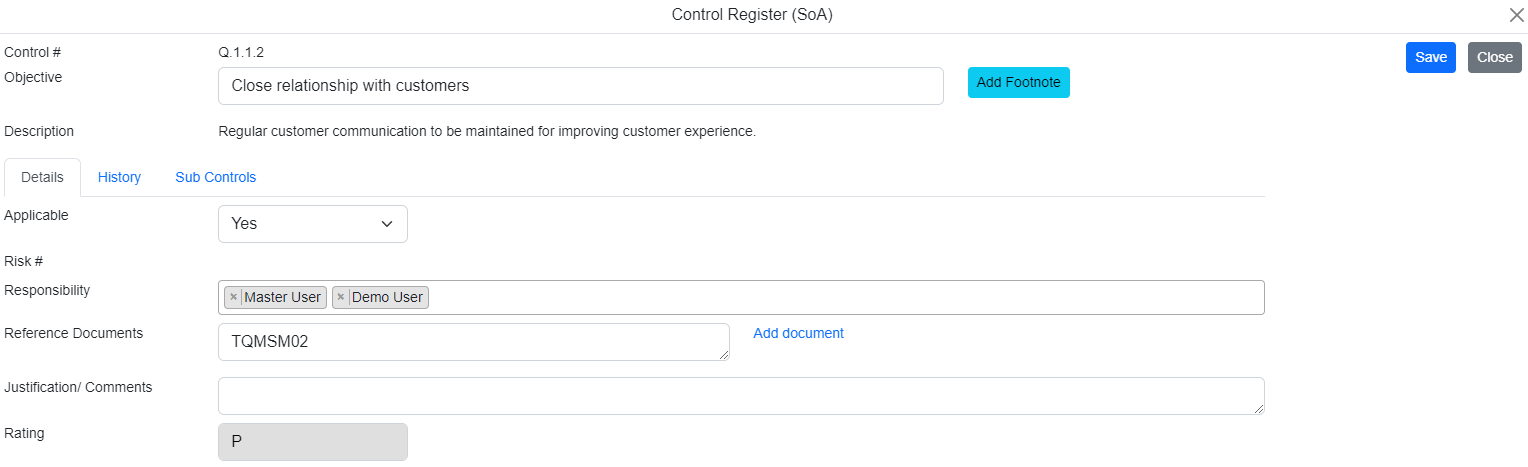
Each Control Register(SOA) control have responsibility and comments fields also associated with it.
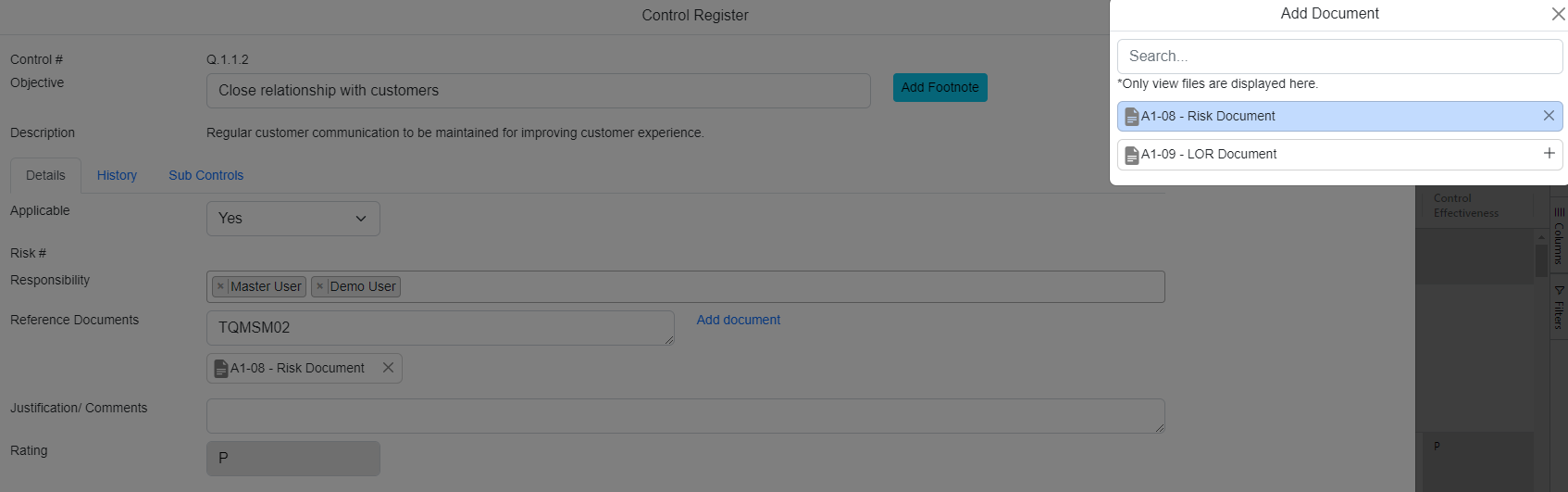
You can add documents by clicking on "Add Document." After clicking, a popup will appear, displaying only published documents sourced from the document management system
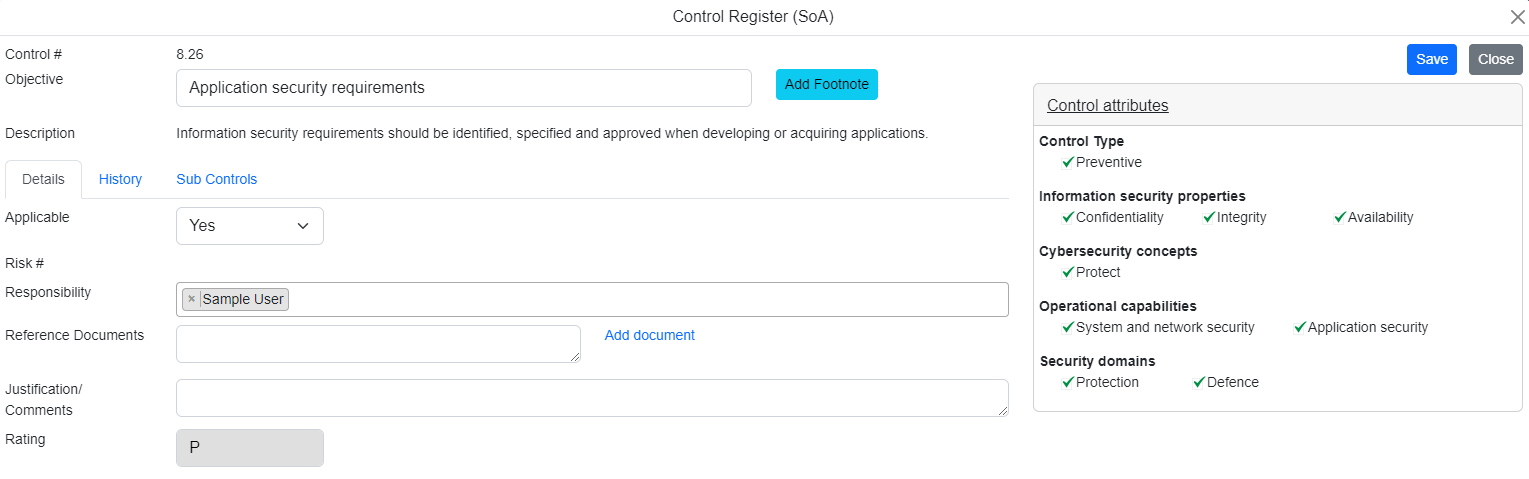
Some Control Register(SOA) control has control attributes, it is shown in the right side.
You can also view or edit sub control of a particular control directly by click on sub control and then edit icon in sub control list
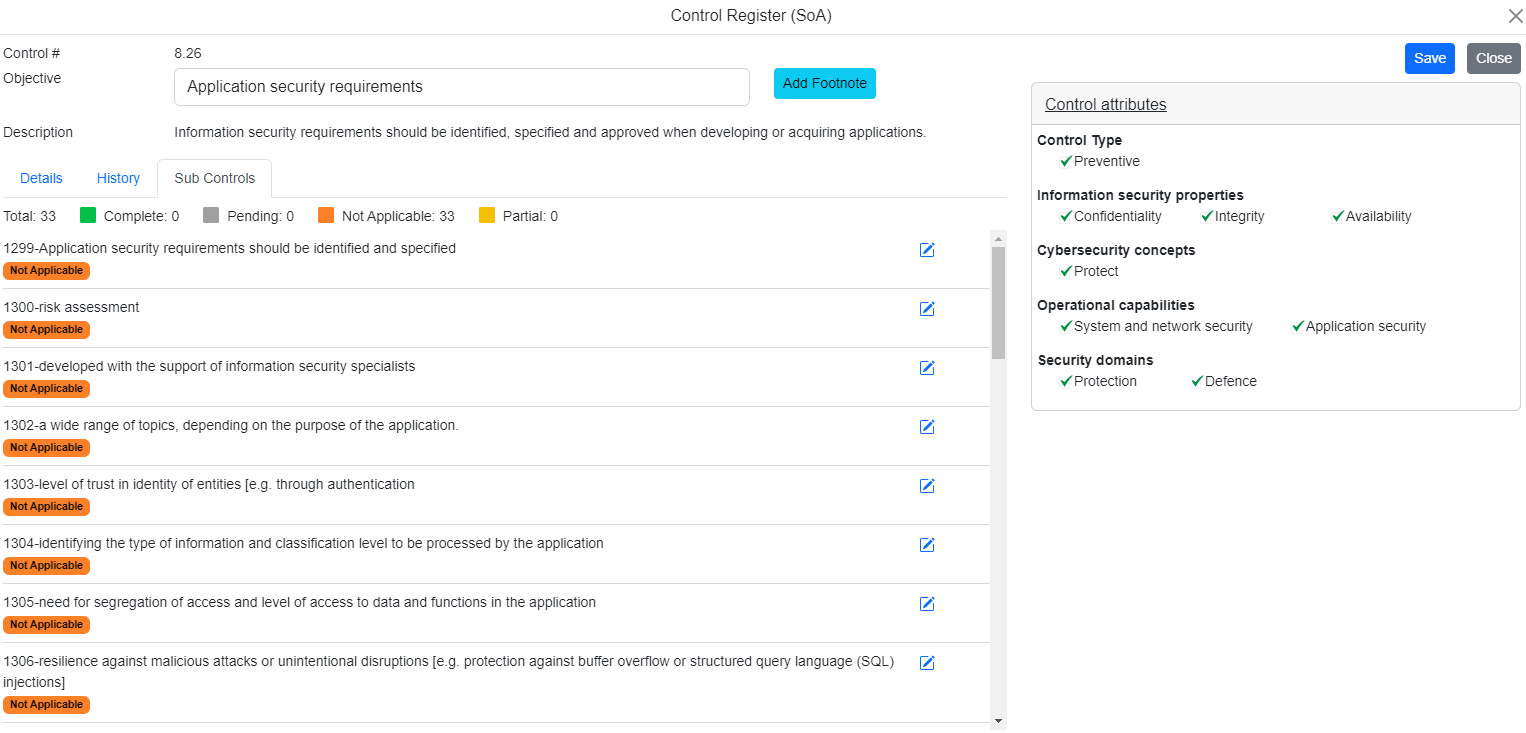
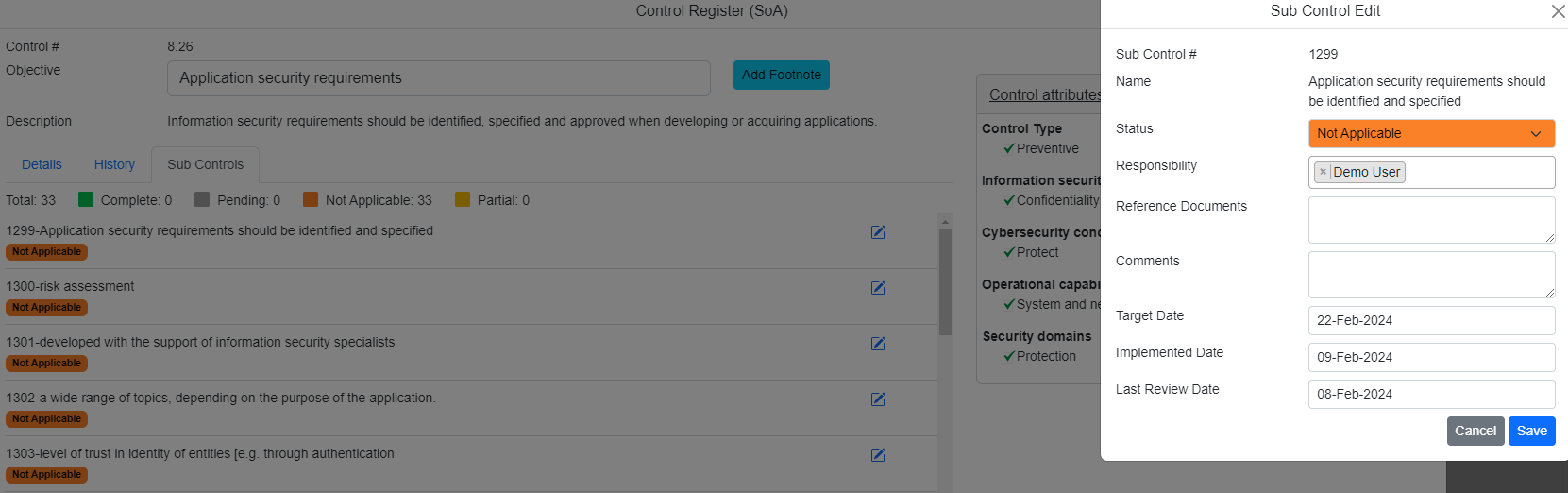
Footnotes can also be managed (create, edit, view, delete) within the Control Register(SOA) as well as in the exported format.
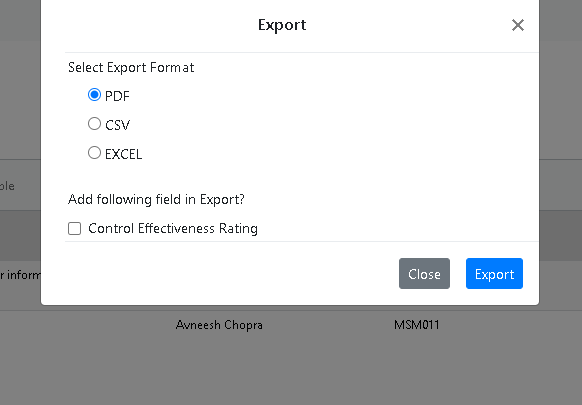
You can export the controls by clicking on the Export button.
Controls can be exported in the following:
- CSV
- Excel
Control Register(SOA) has specific version in format of XX.XX where X represents a number. Each change for association of a risk makes a version change by adding 0.01 in the existing version.

You can change the Confidential tag in the Export PDF, CSV and Excel in others option.

PDF Export Example

You can filter the controls by two ways:
- Click the filter option in the right side of the table
- Click Three Bar Icon present in every column.
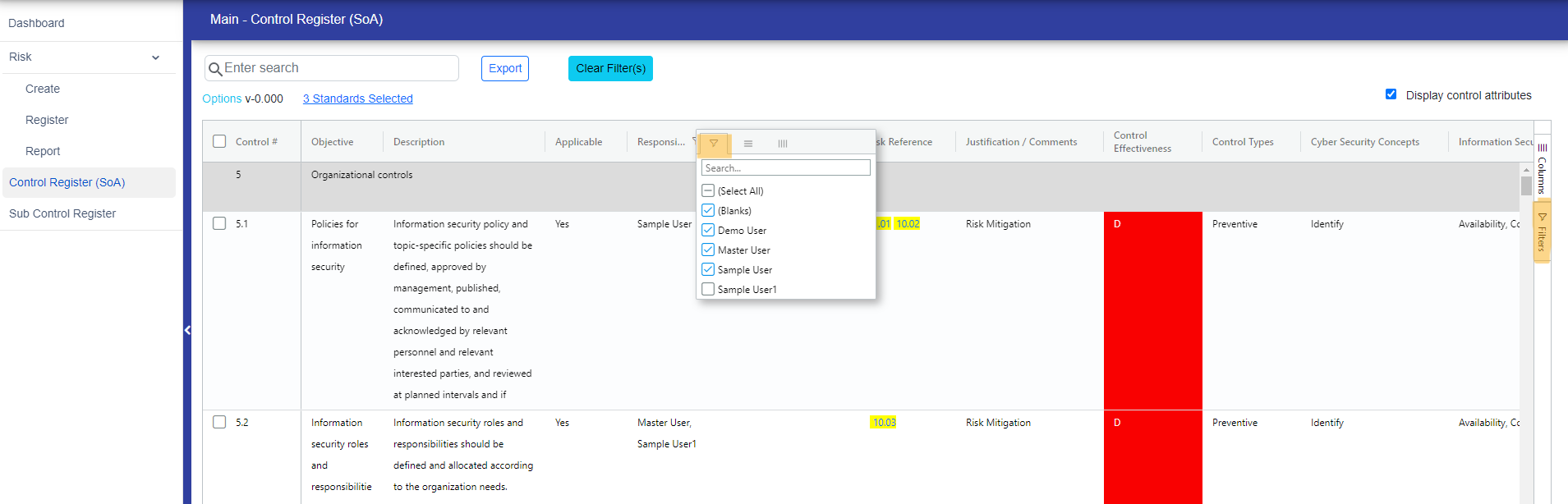
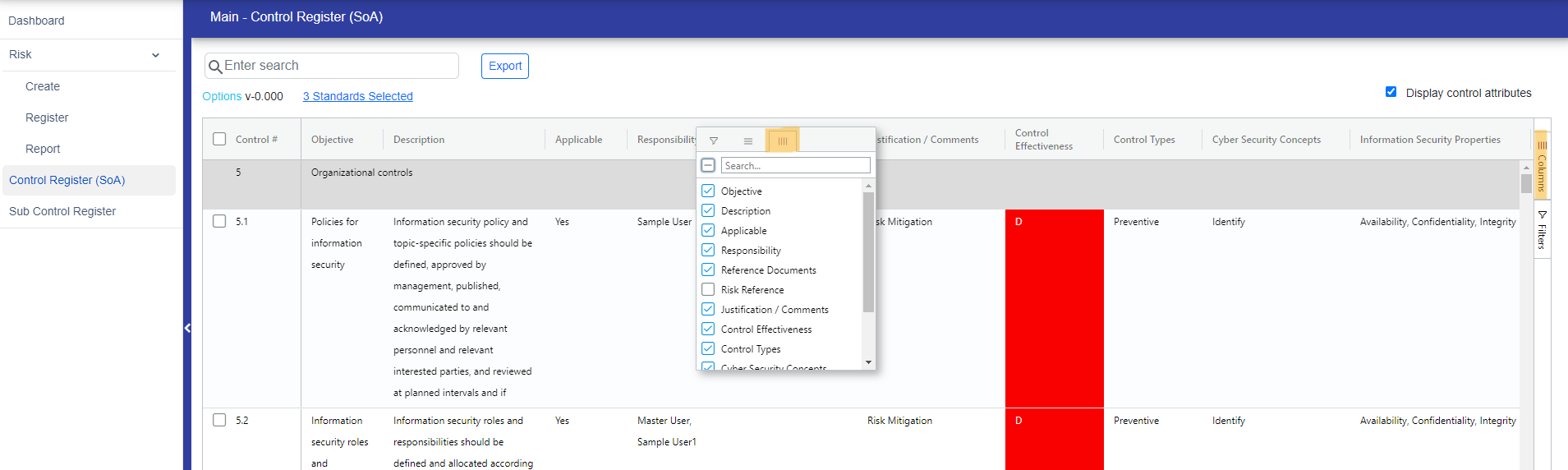
You can select and unselect the columns for the refined view by two ways:
- Click the column option in the right side of the table.
- Click Three Bar Icon present in every column.
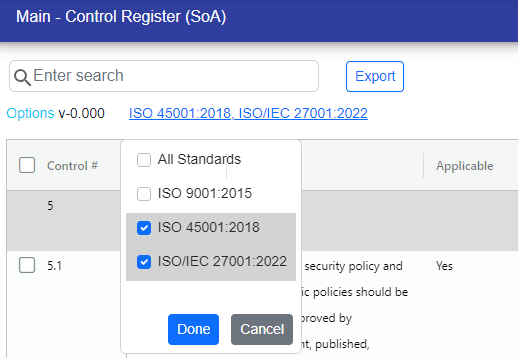
You can Filter on the basis of standards. You can select the standard from the dropdown.
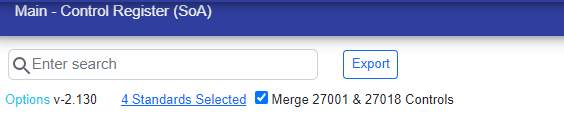
When you have standards 27001 and 27018 so, you can merge the controls of both the standards by clicking the checkbox.
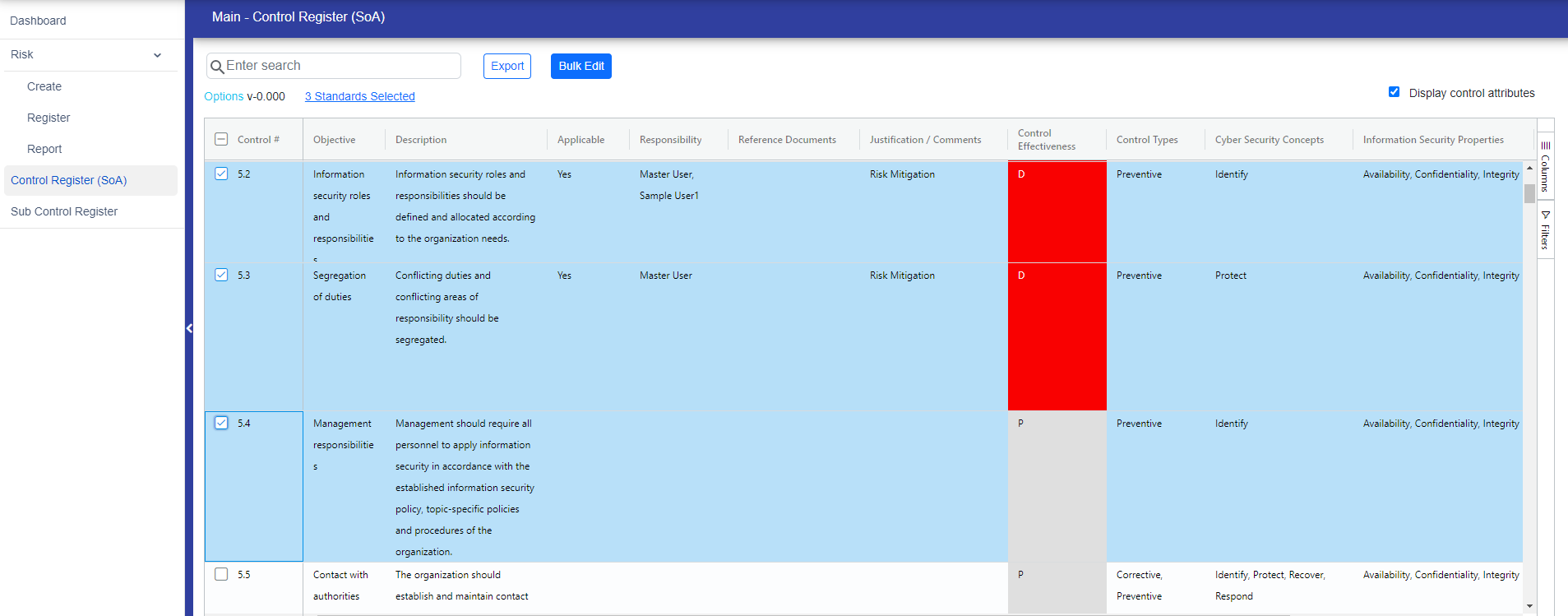
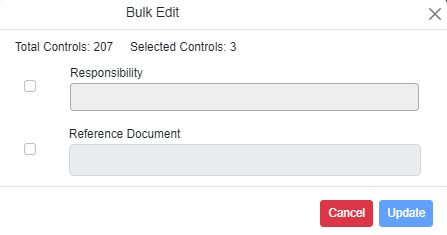
You can update two or more controls at a time, follow the steps:-
Step 1: Click the checkbox to select the controls you want to update.
Step 2: Then appears the Bulk Edit button near the Export button. Click the bulk Edit button.
Step 3: Bulk Edit popup appears. click the checkbox to enable the field you want to update.
Step 4: Select the values and click Update to save changes.
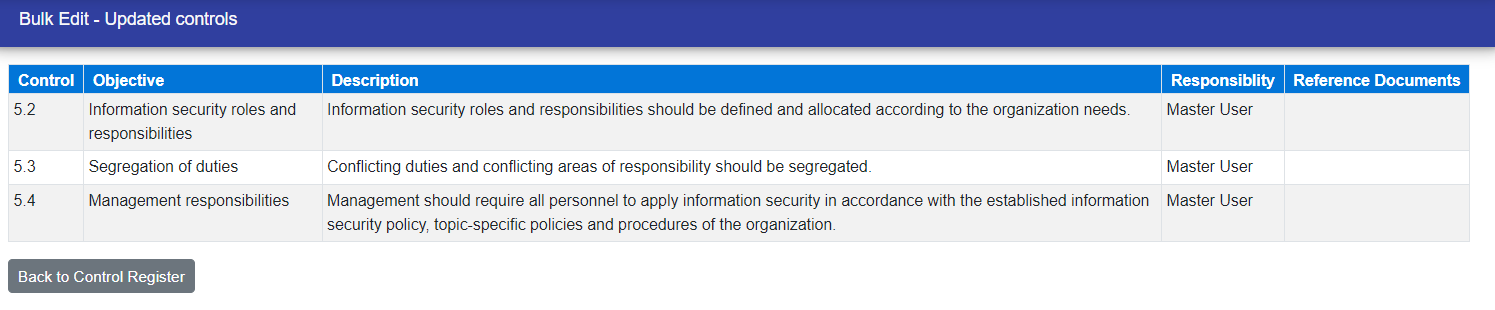
Step 5: You can see all the changes in the following screen.
© Tofrum, 2024 • Updated: 19-3-2024
Comment or report problem with topic
