
 Asset Register
In the assets register, you can view a complete list of assets along with their detailed information. Assets with pink color indicate that it is an incomplete record and orange color indicate the required field has no value.
By double-clicking on an asset, you can edit its details. Additionally, there is a plus (+) icon in the top right corner, which allows you to directly create a new asset from the assets register itself. This feature provides a convenient way to manage assets and streamline the process of creating new ones.
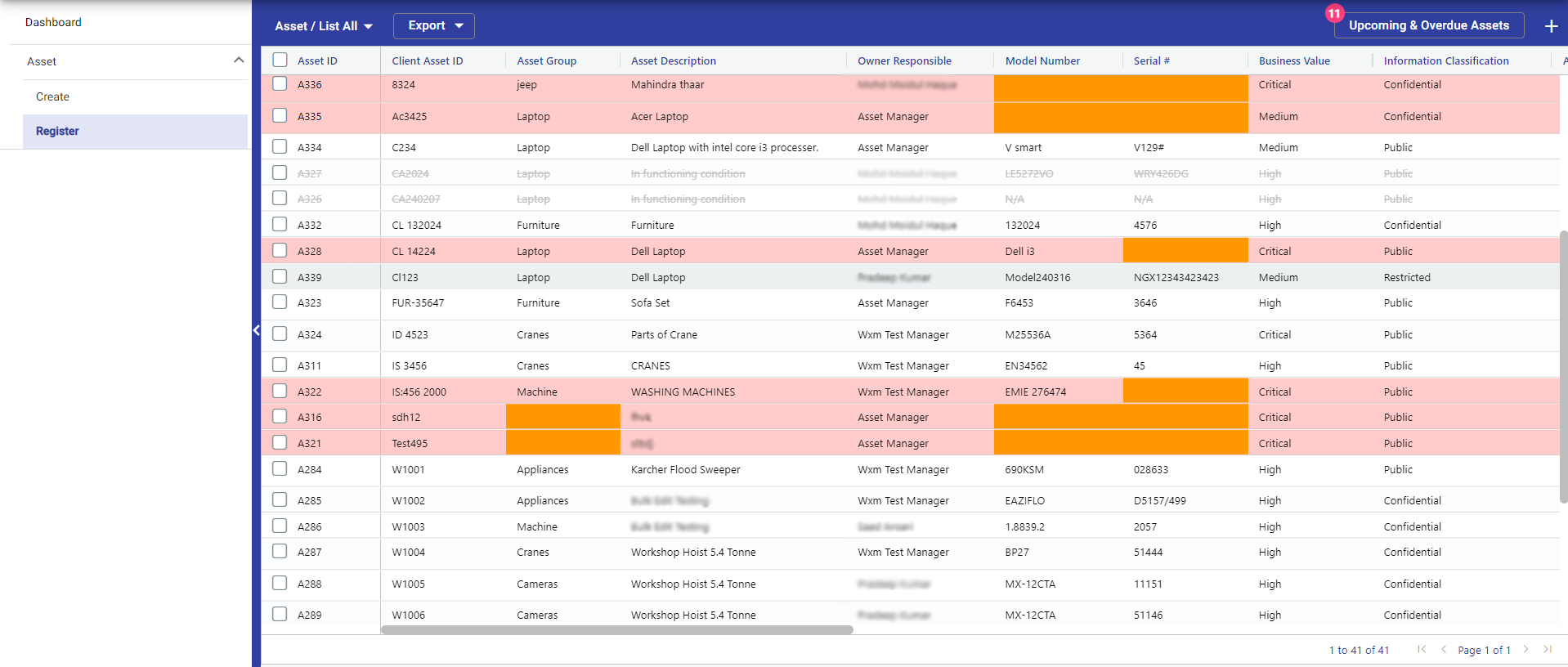 User can also view the list as per their requirements by selecting the dropdown.
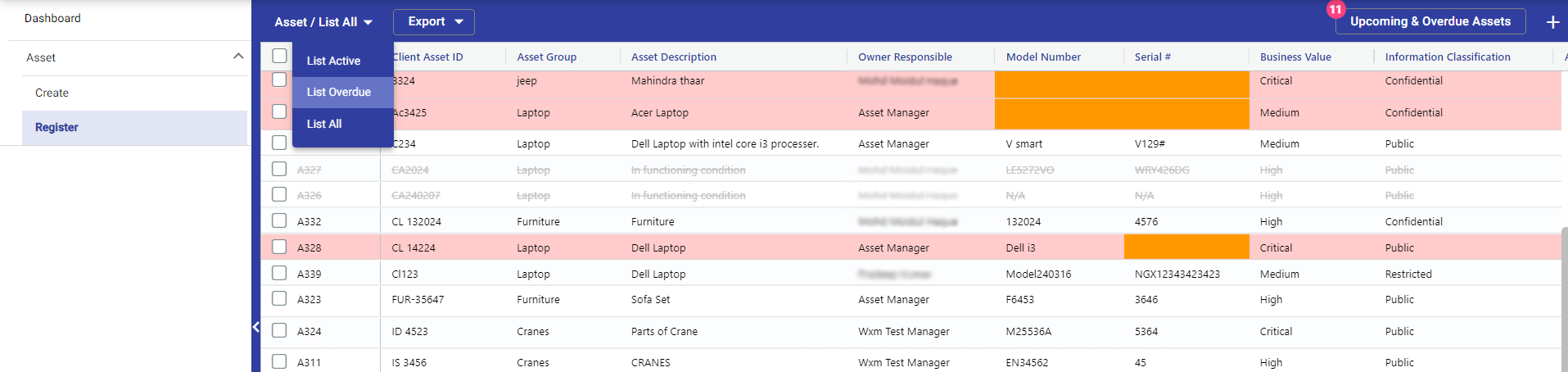 In the dropdown menu, user have three options to choose from: "All List," "Active List," and "List Overdue."
- "List Active" displays only the assets that are currently active.
- "List Overdue" presents you with assets that have missed their scheduled review dates and haven't been checked yet. When you create or edit an asset and set the next due date, if that date has already passed, the asset will be considered overdue and will be listed in the "List Overdue" section.
- "List All" shows you all the assets, including the ones that are currently active as well as the ones that are inactive.
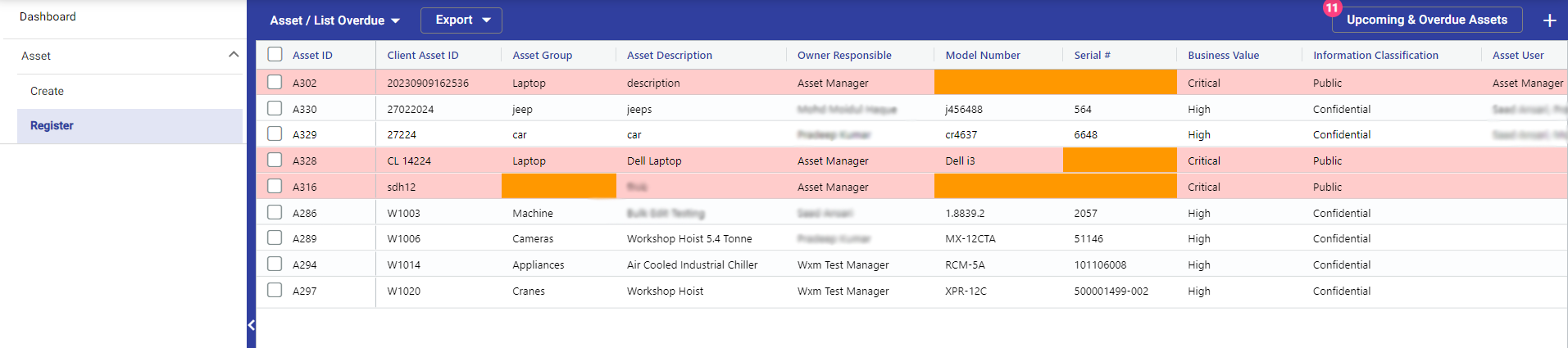 You can perform the following Actions in the List View:
Filter Records
You can filter the records by specifying the filter values in one or more columns displayed in the List View at the bottom. E.g. if ‘A’ is specified in the Lead Name Filter textbox and tabbed out (by pressing Tab key), then all Leads with the field name containing ‘A’ will be displayed.
Sort Records
You can sort the records in ascending/descending order by clicking on the field name in the List View.
- Ascending - By default it sorts in ascending order when clicked on any column header or on click of up arrow.
- Descending - Click on the down arrow to sort records in descending order on any column header.
You can perform some operation on a Record from the List View Screen by Right click on the record :
- Right Click on a record to see the list of actions that can be performed. You can click on menu item to navigate to the Edit Record page.
- You can click on menu item to navigate to the Detail Record page.
- You can click on menu item to delete the record.
- Data Export - We can export the Assets in either excel form or csv.
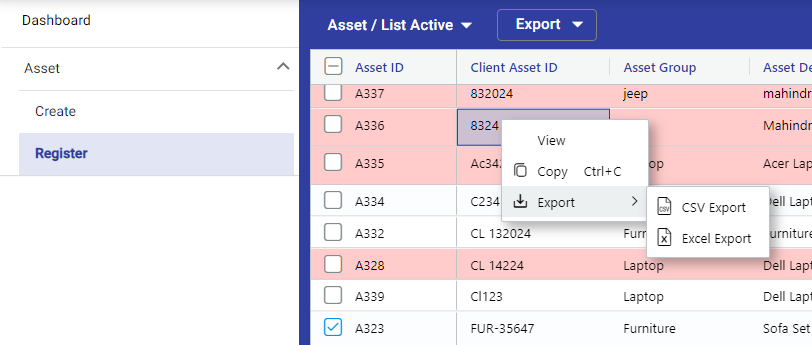 Note : You would need to have permission to Edit records.
Manager can delete and edit the single asset as well as bulk asset. For bulk delete and bulk edit, just click on the check box and click either the edit icon or delete icon showing in the top right corner of the asset register.
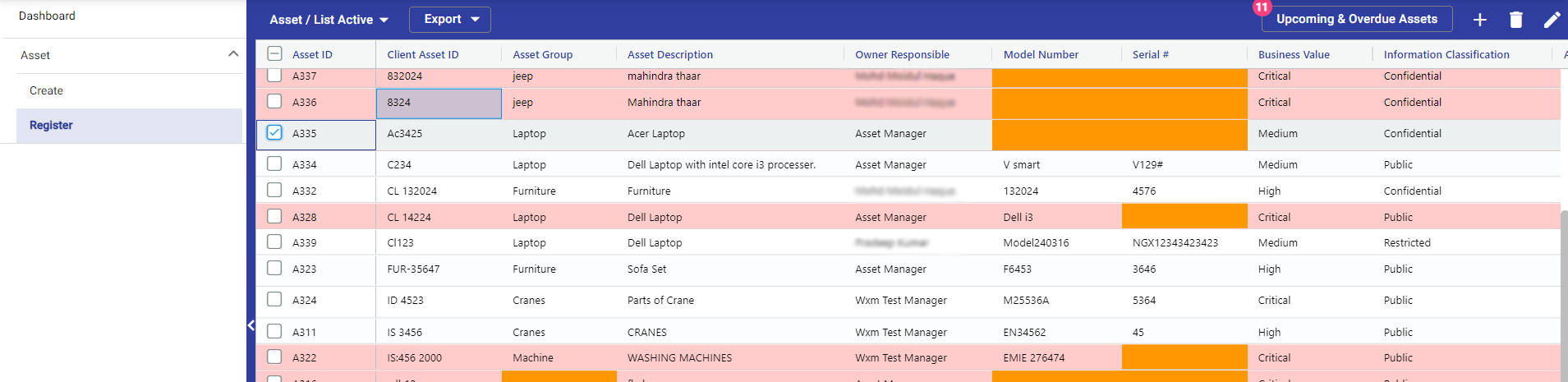
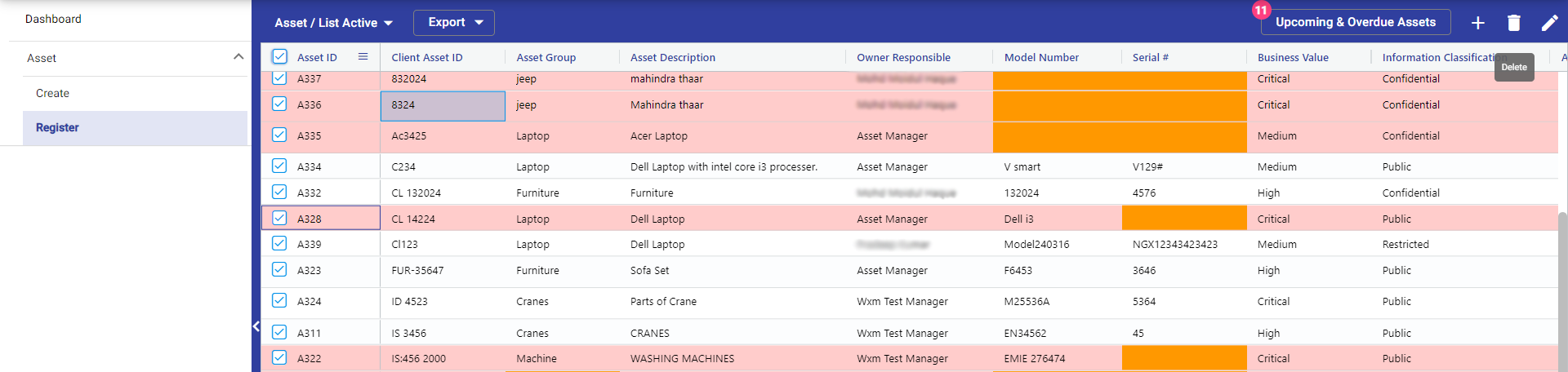
Furthermore, if you're a manager, you can easily view overdue and upcoming assets by clicking on "Upcoming & Overdue Assets" and review them directly.
 After clicking on this, a card will appear displaying a list of upcoming & overdue assets. You can then select the assets and submit to update its checking date.
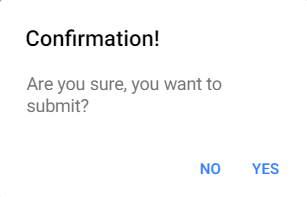
 When you select assets, a submit button will appear. After clicking on submit, a confirmation popup will appear. If you want to proceed with the submission, click on "Yes". Once confirmed, the asset will be reviewed, and its last checked date will be updated with the current date. Additionally, the next due date will be updated according to the review frequency.

© Tofrum, 2024 • Updated: 19-3-2024
Comment or report problem with topic
