
 Register
In the LOR register, you can see all of the LORs. Additionally, you can apply filters to view them according to specific requirements.
Furthermore, you also have the option to import or export the LOR. Additionally, you can directly create the LOR by clicking on the plus icon located in the upper right corner.
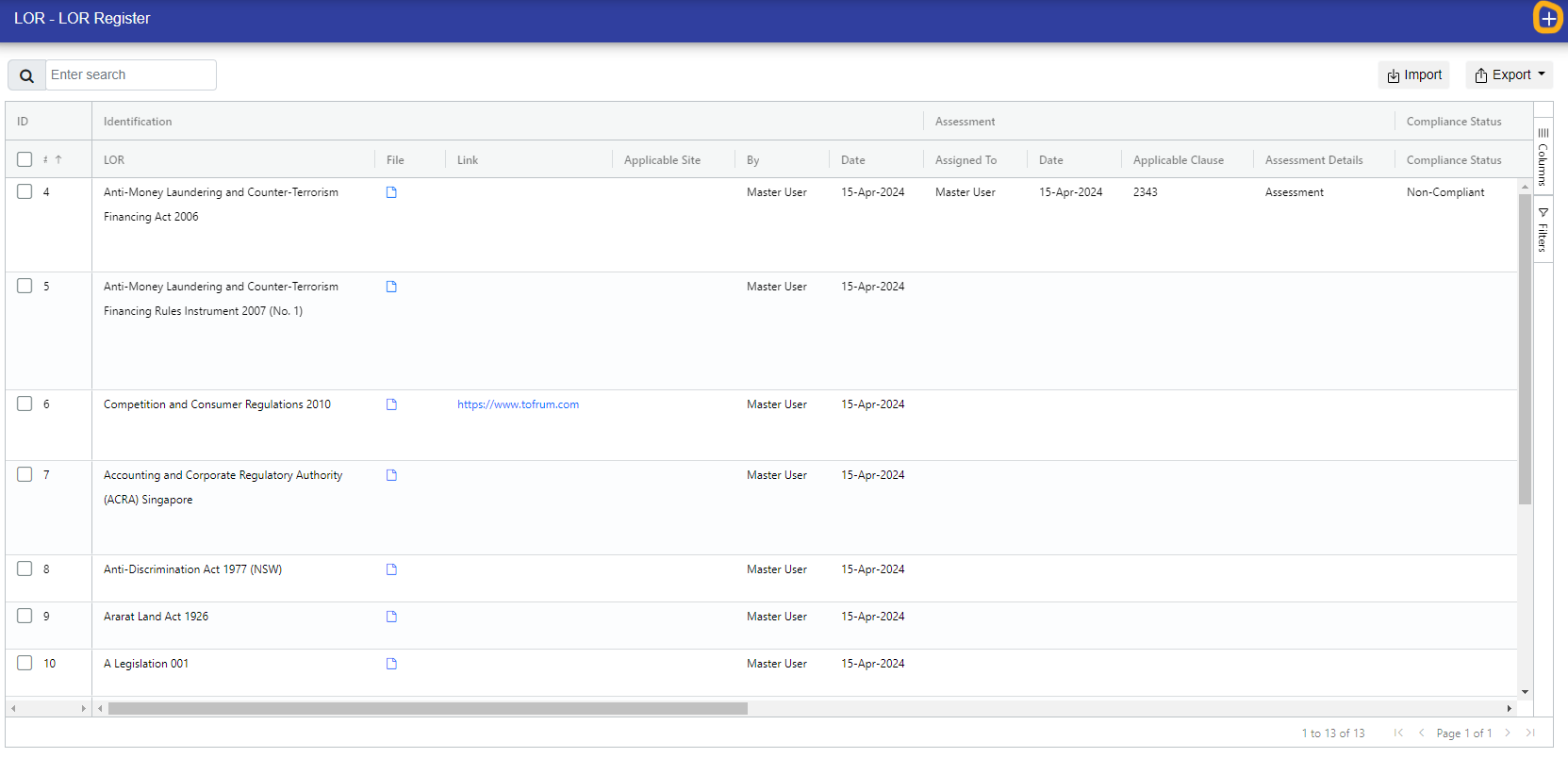
You can select and unselect the columns for the refined view by two ways:
- Click the Column option in the right side of the table.
- Click Three Bar Icon present in every column.
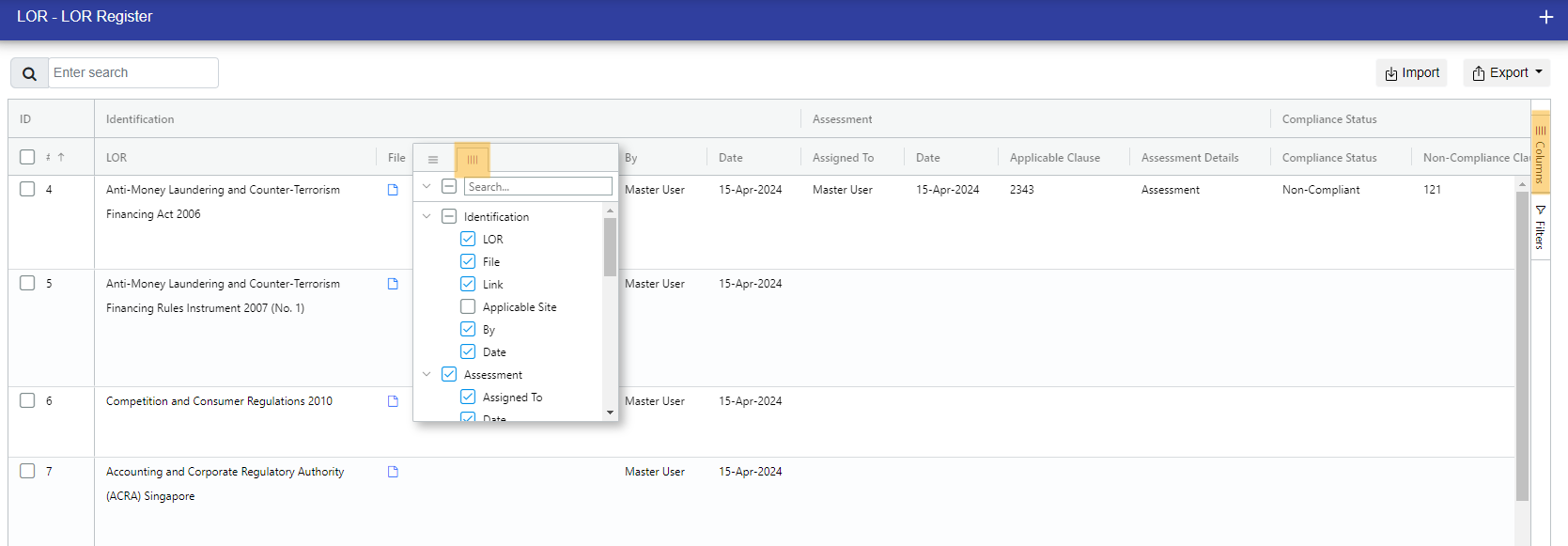
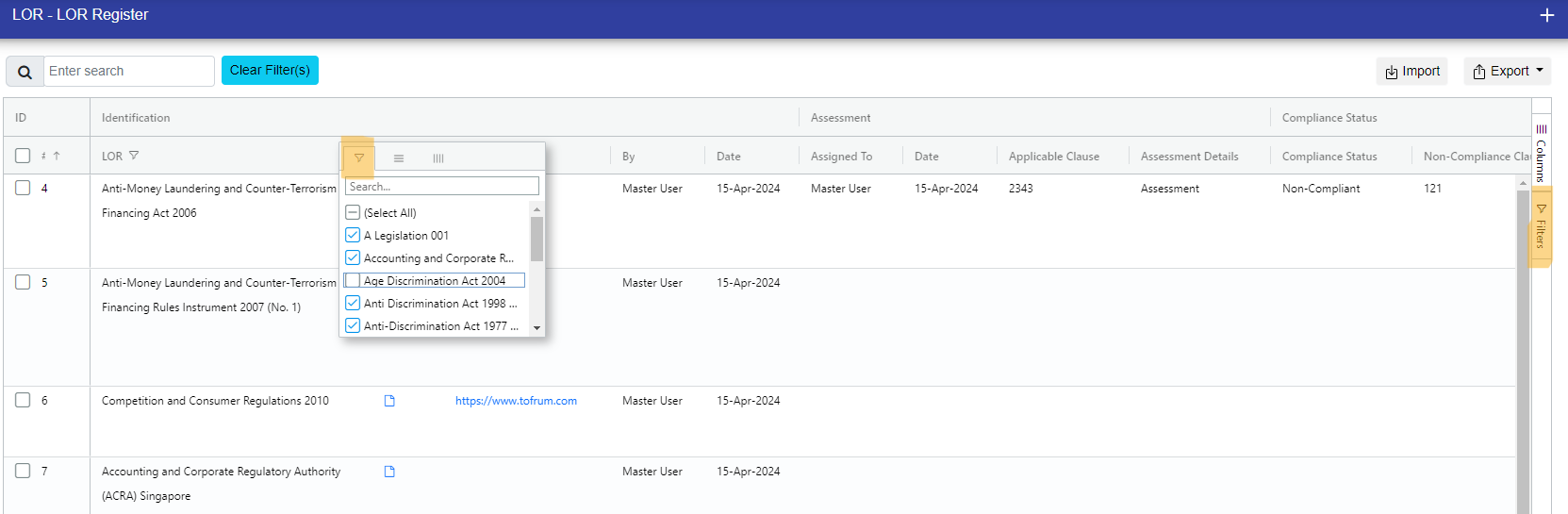
You can filter the list by two ways:
- Click the filter option in the right side of the table.
- Click Three Bar Icon present in every column.
After filtering, "Clear Filter" button appears to clear all filters you have selected.
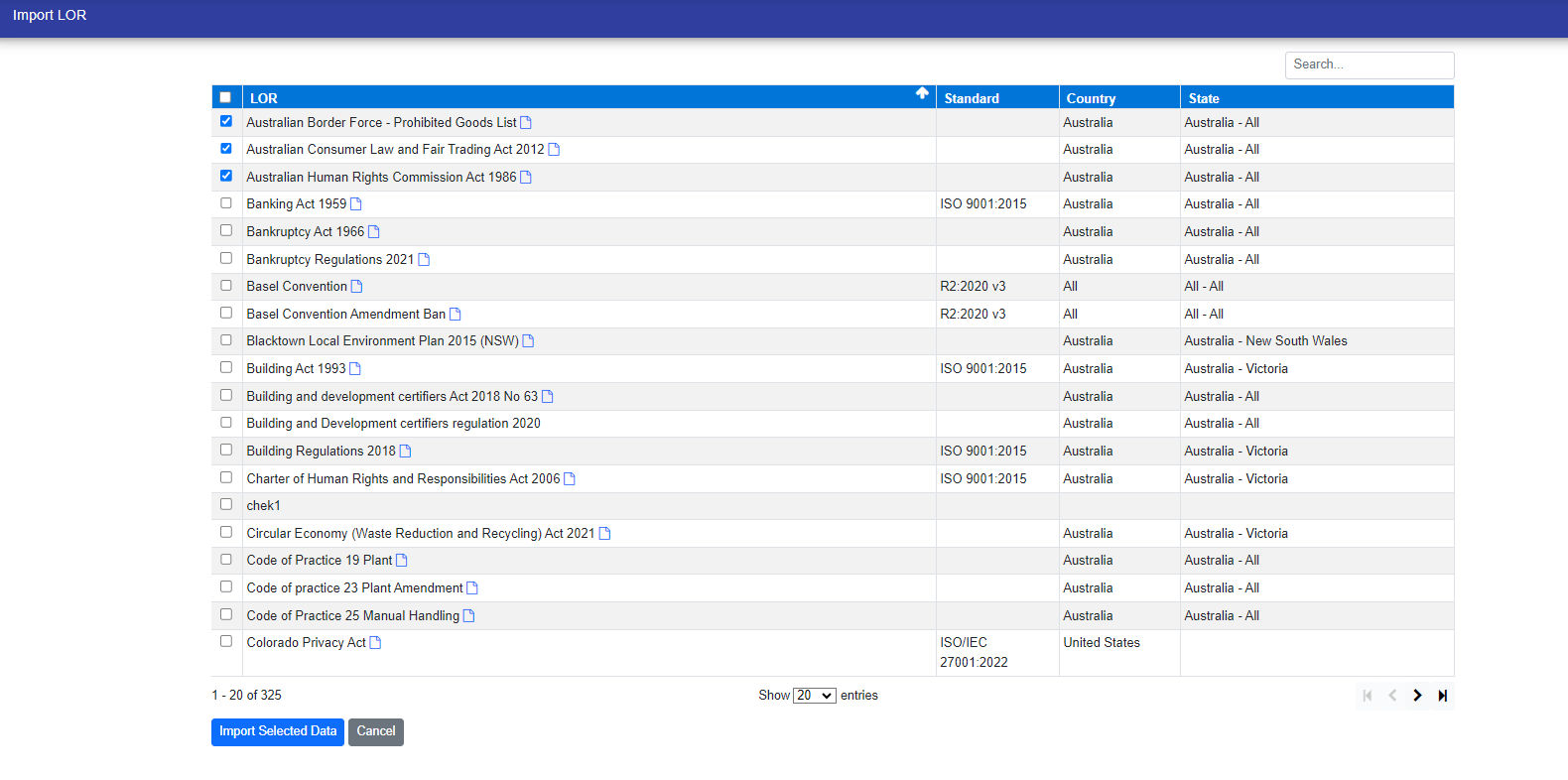
You can import the LORs with the import button in the top right corner.
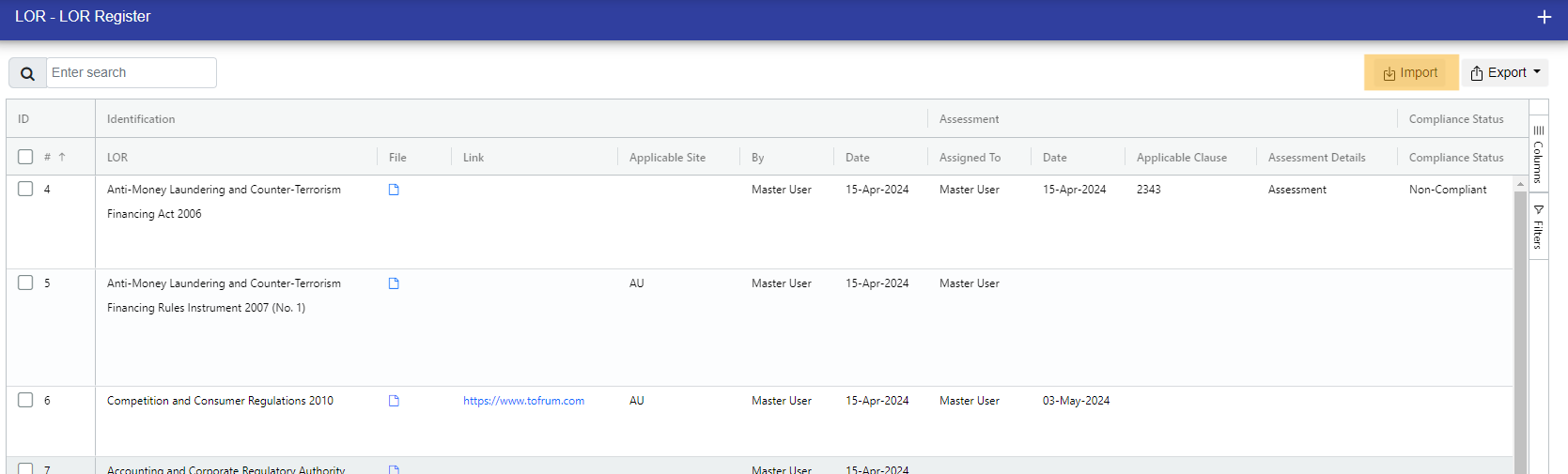
After clicking the "Import" button, you can see the list of LORs where you can select the LORs and click on "Import Selected Data" button to import them into your register.
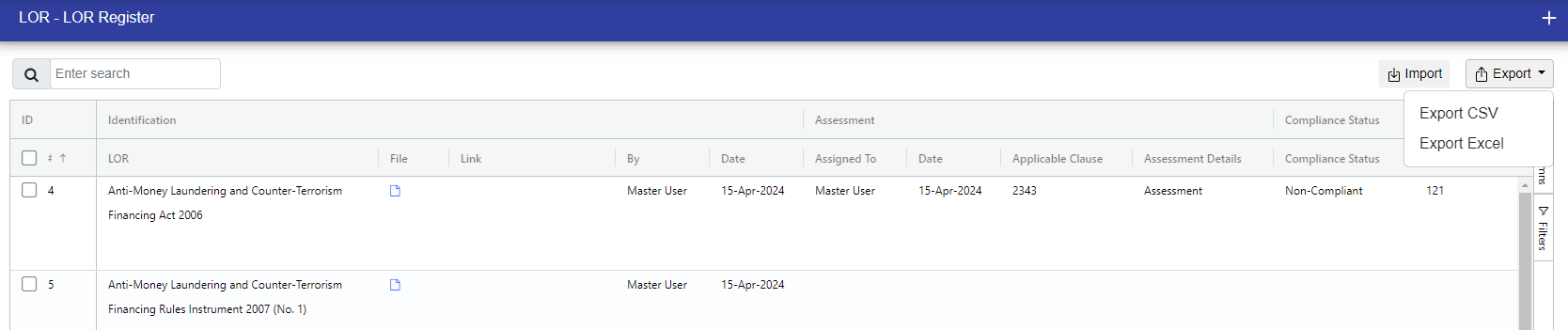
You can export the LORs in CSV and Excel with the Export button on the top right corner.
You can edit the LOR by double-clicking on any LOR in the register. There are 6 stages of LOR -
- Assessment Pending
- Compliance Pending
- Approval Peding
- Implementation Pending
- Reassessment Pending
- Review Pending
Additionally, You can update two or more LORs at a time, follow the steps:-
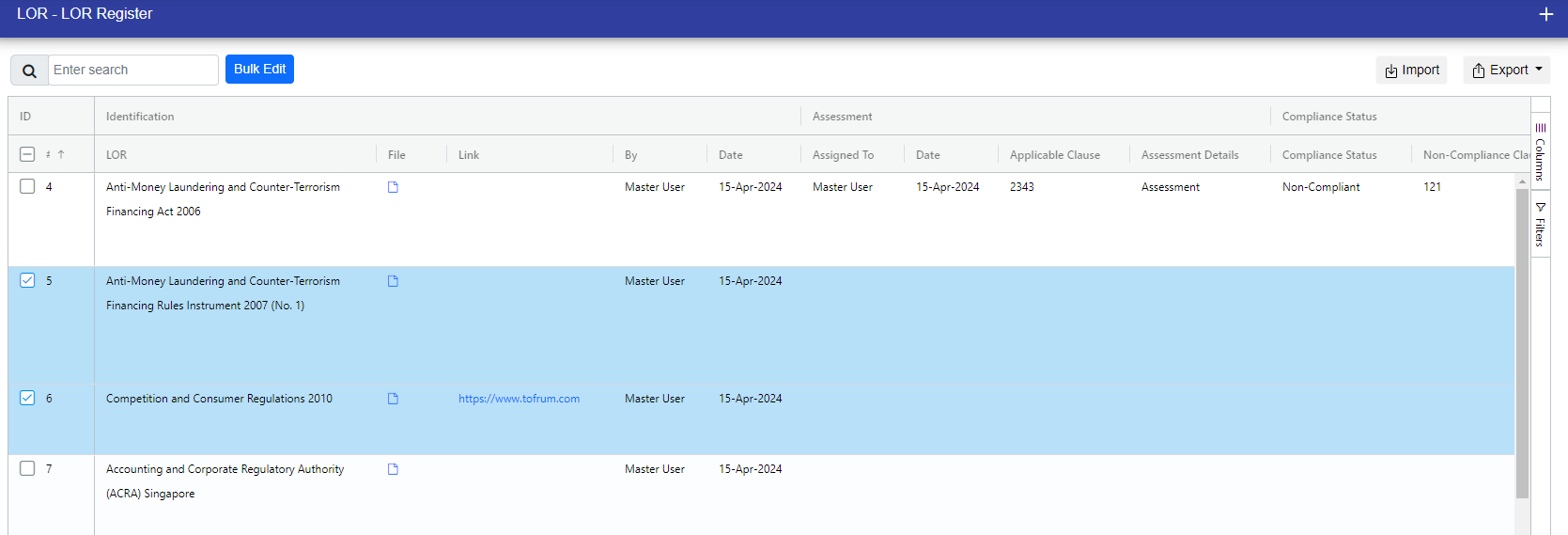
Step 1: Click the checkbox to select the LOR you want to update.
Step 2: Then appears the Bulk Edit button. Click the bulk Edit button.
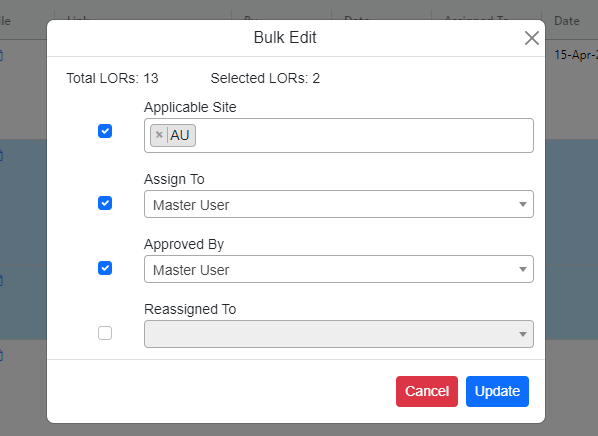
Step 3: Bulk Edit popup appears. click the checkbox to enable the field you want to update.
Step 4: Select the values and click Update to save changes.
Step 5: You can see all the changes in the following screen.

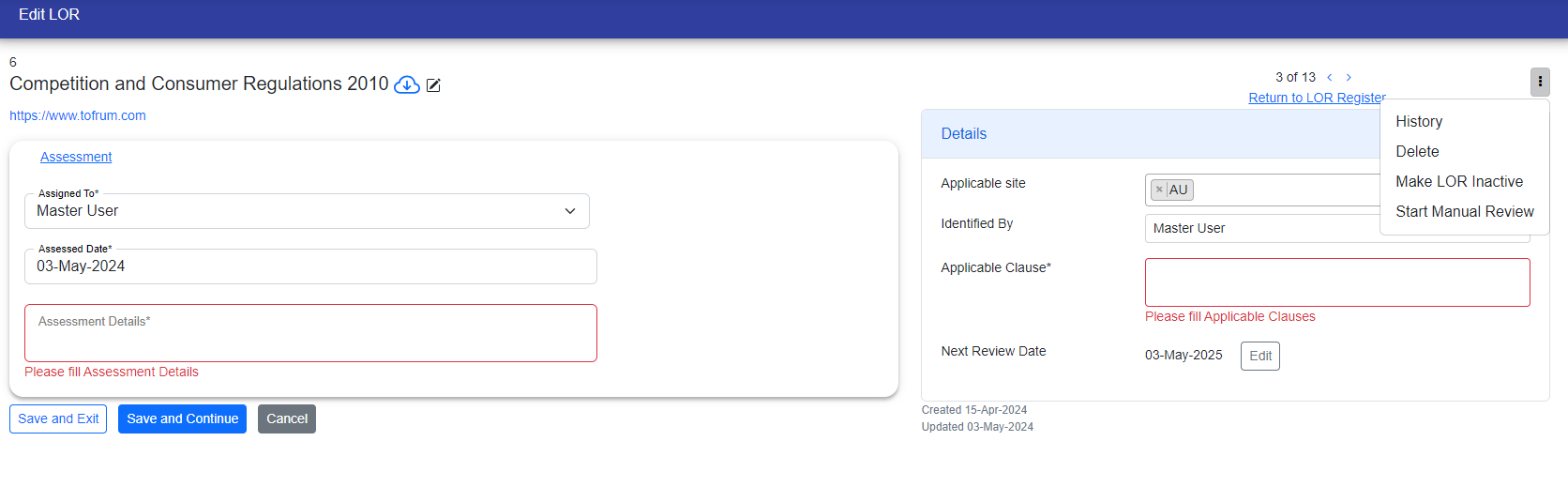
Note : Only LOR manager can perfrom operations like - Edit, Assign a User to LOR, Manual Review the LOR, Active/Inactive the LOR and Delete the LOR.
Start Manual Review : If you manually review the LOR, it will appear in the "Review Pending" stage.
LOR Manager : Manager has all the right to edit the LOR at any stage.
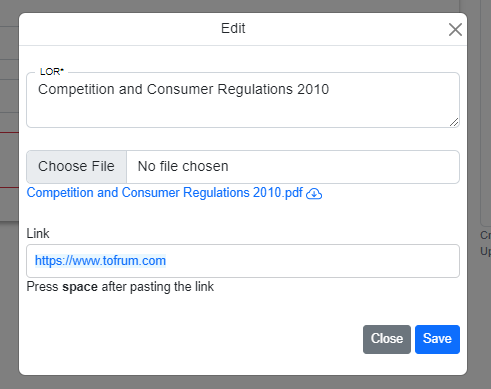
By clicking the edit icon located on the right side of the Legislation name, the LOR assignee can directly edit the Legislation name, file, and link.
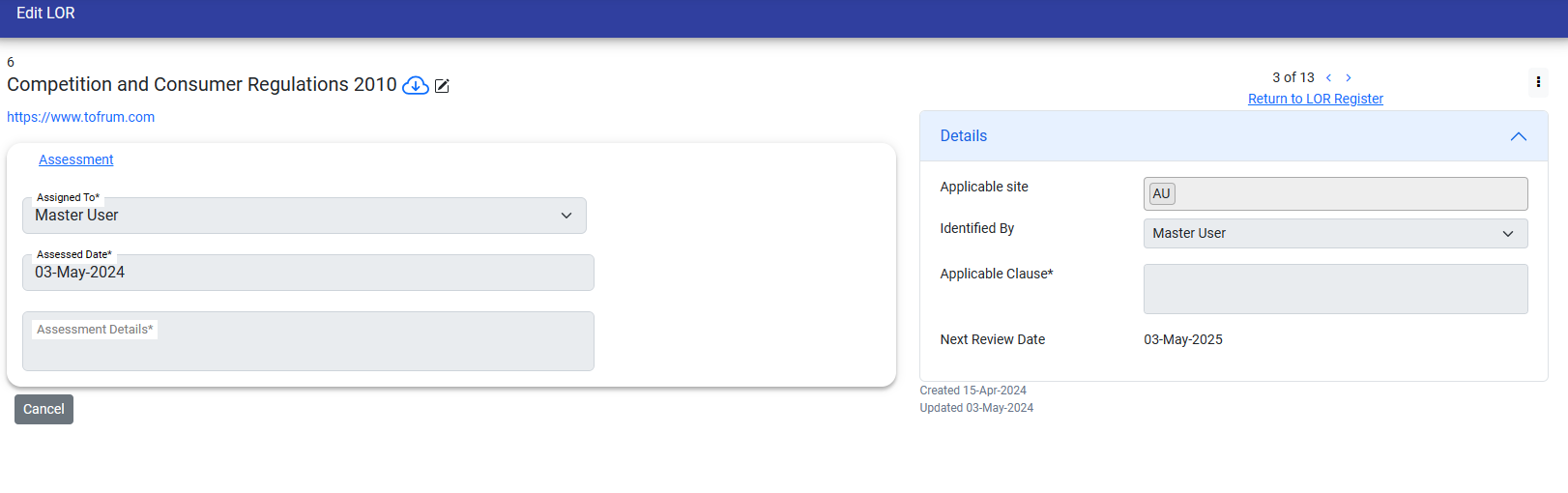
LOR User : User have limited access. This means they won't be able to Edit the LOR untill the LOR is assigned to them.
LOR Activate/Inactivate : When a LOR is assigned to a LOR User and they Activate or Inactivate it, an email is sent to the LOR Manager notifying them that this LOR has been Activated/Inactivated by the user. However, if a LOR is assigned to the manager, no email is sent when they activate or inactivate it.
© Tofrum, 2024 • Updated: 11-5-2024
Comment or report problem with topic
