
 Sub Control Register
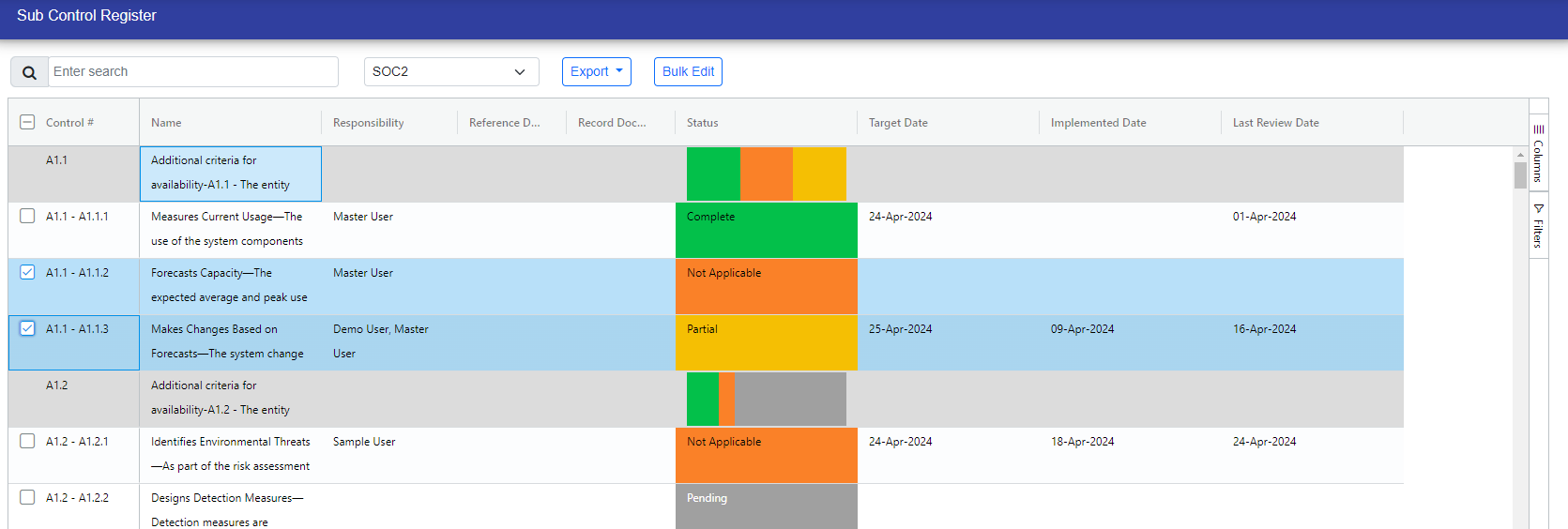
A sub-control register helps us manage the smaller controls within a system according to specific standards.
You can choose the standard from the standard options in the dropdown menu.
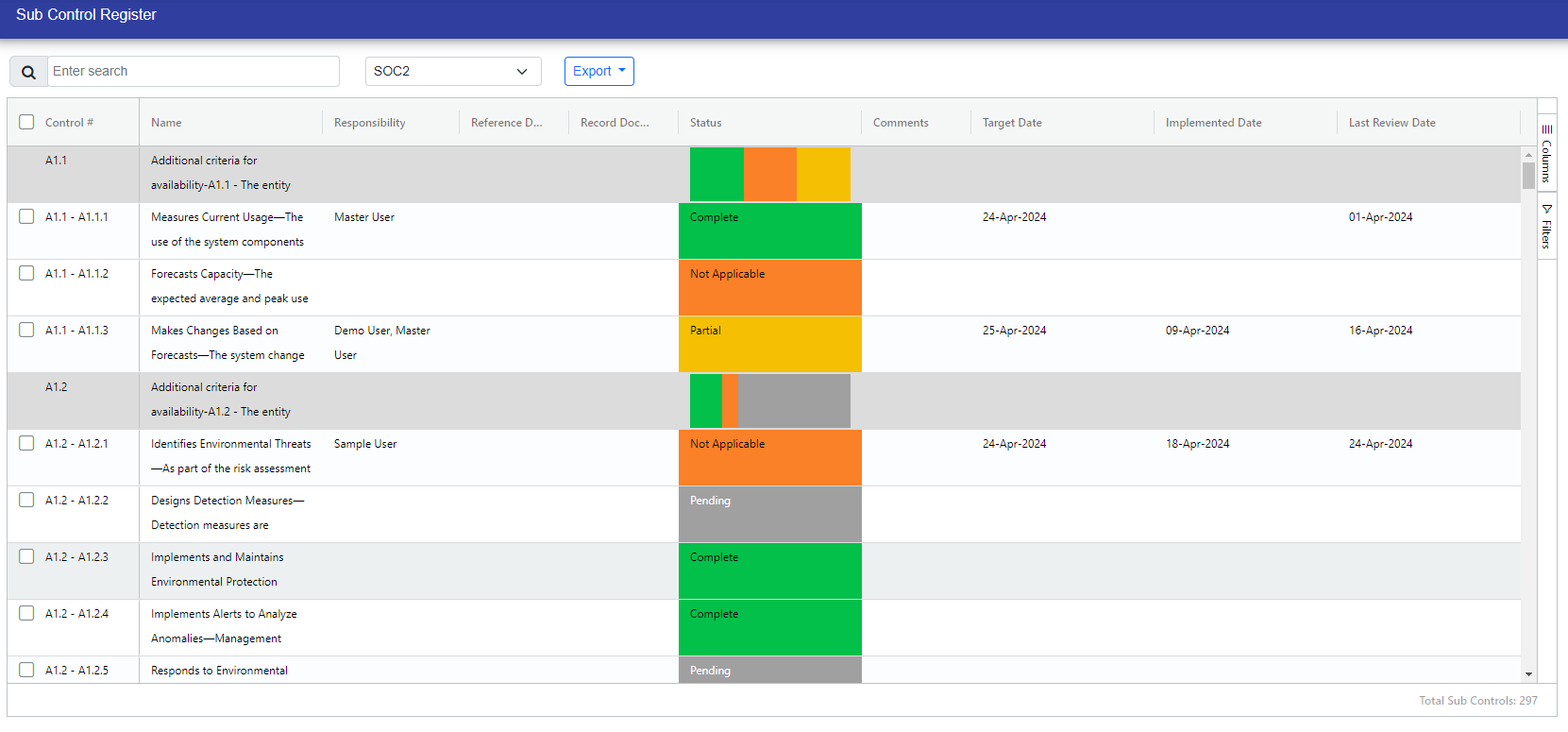
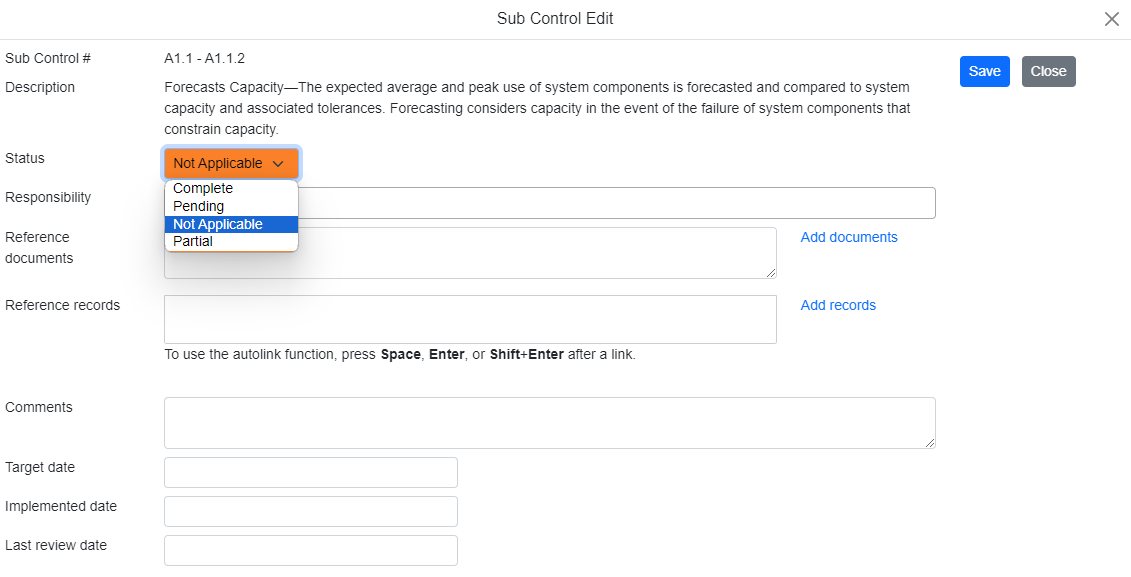
You can edit the sub-control by double-clicking on the specific sub-control. From there, you can choose the status, responsibility, and other details related to that sub-control.
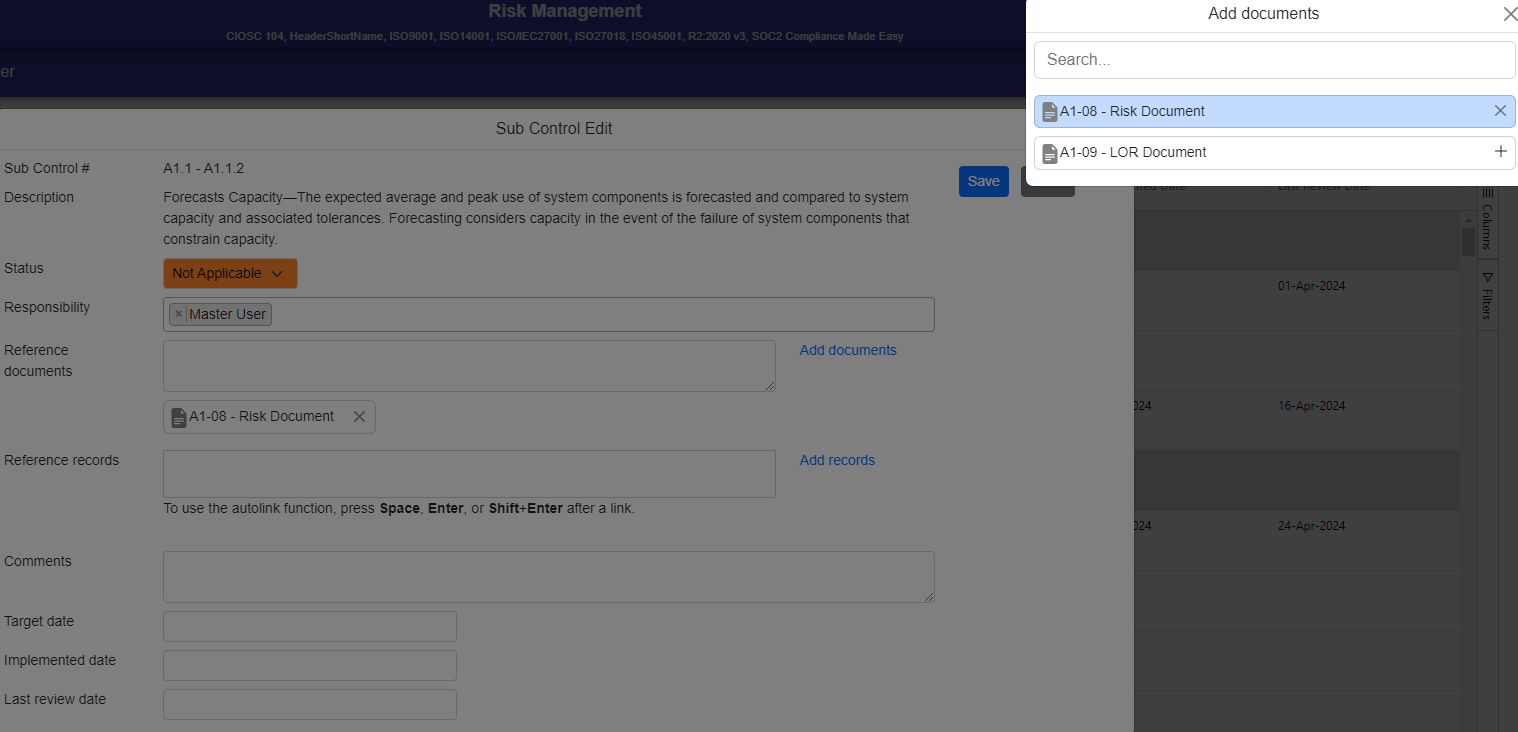
You can add documents by clicking on "Add Document." After clicking, a popup will appear, displaying only published documents sourced from the document management system
If you have access to record management, you can easily add records by dragging and dropping them or selecting them. Once added, the system will scan for viruses before uploading. After scanning, a save button will appear. Clicking on it will save the record in the sub control. You can also add subcontrols by selecting from a list that appears for each respective subcontrol.
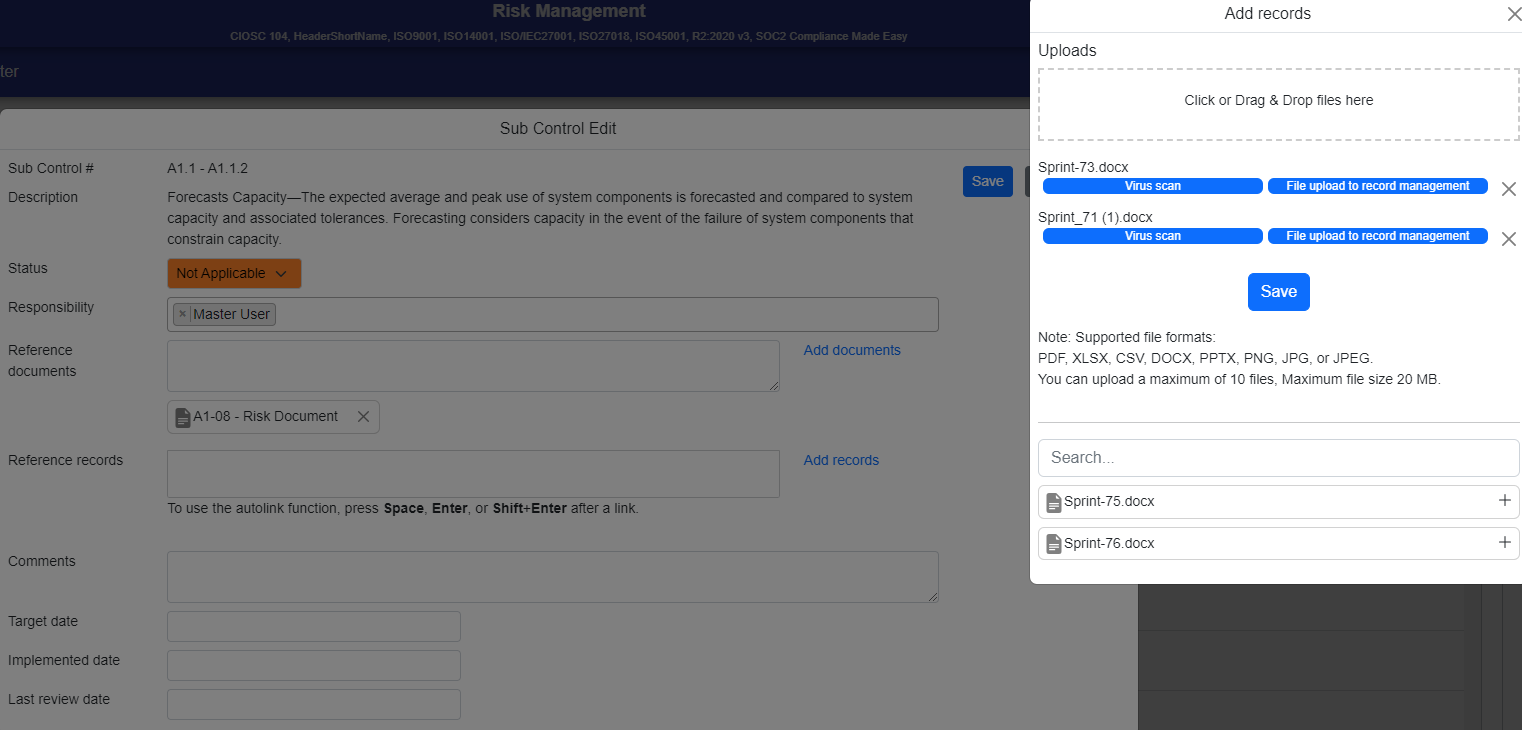
After adding records from the subcontrol, a folder will be created in the records management register for each respective subcontrol under the control folder. All the records will then be added to their respective subcontrol folders.
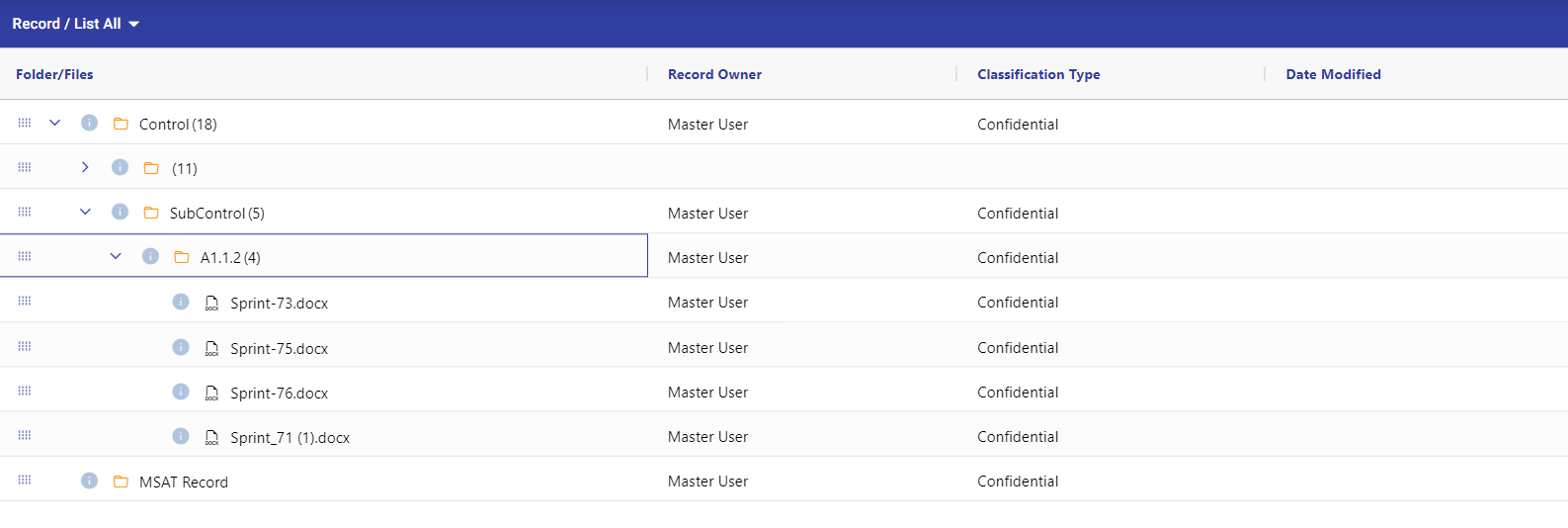
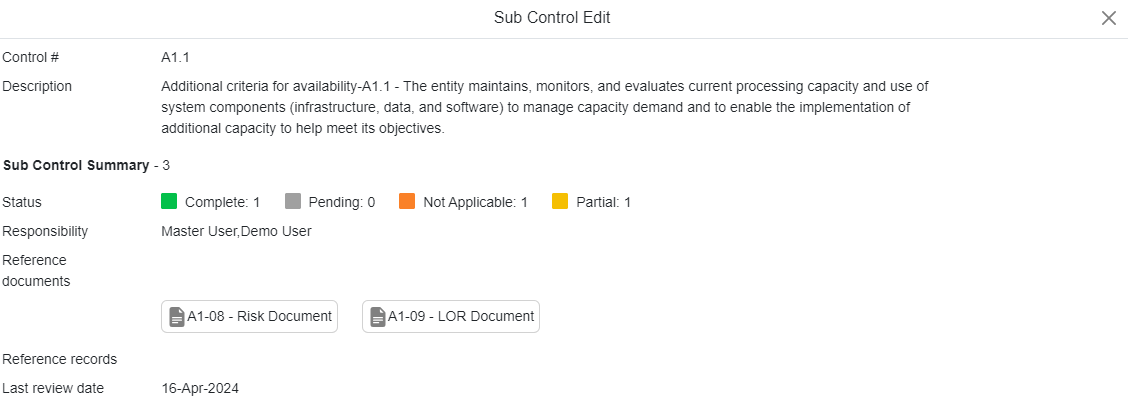
You can view the summary of all sub-controls by opening the associated control, which displays the details of each sub-control's activity.
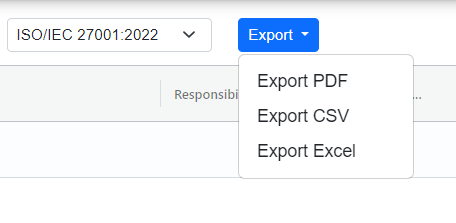
You can export the Sub Controls by clicking on the Export button. Controls can be exported in the following:
- CSV
- Excel
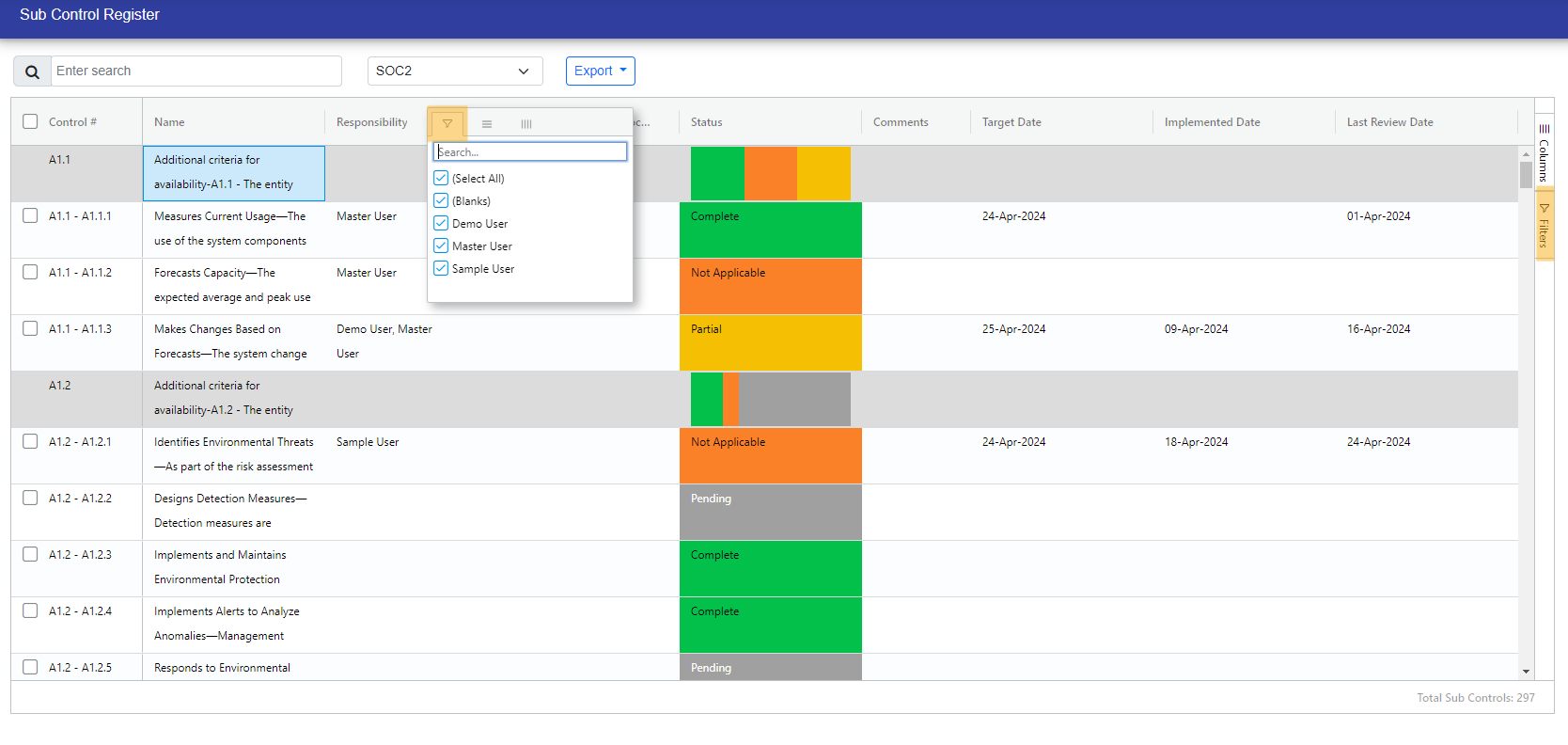
You can filter the Sub controls by two ways:
- Click the filter option in the right side of the table
- Click Three Bar Icon present in every column.
You can select and unselect the columns for the refined view by two ways:
- Click option in the right side of the table.
- Click Three Bar Icon present in every column.

You can update two or more sub controls at a time, follow the steps:-
Step 1: Click the checkbox to select the sub control you want to update.
Step 2: Then appears the Bulk Edit button near the Export button. Click the bulk Edit button.
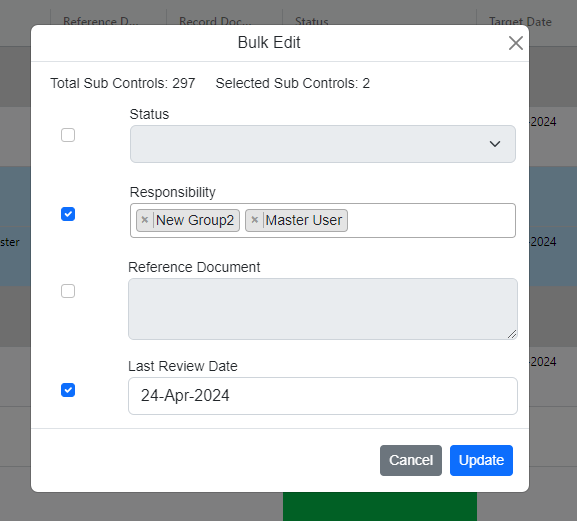
Step 3: Bulk Edit popup appears. click the checkbox to enable the field you want to update.
Step 4: Select the values and click Update to save changes.
Step 5: You can see all the changes in the following screen.

© Tofrum, 2024 • Updated: 24-4-2024
Comment or report problem with topic
